If this is a short-answer question, “publish the blog” is usually the expected answer. The practical detail is that saving a draft, publishing a post, launching a whole site and making it public can be separate controls. An approved reader may also be able to view a private blog or a shared preview without making it public.
Guides Karan Singh BhakuniUpdated 3 Nov 2026
What Must You Do Before Others Can View Your Blog?
Karan Singh BhakuniUpdated 3 Nov 2026- 12 min read
- 7 sections
- 3 comparison tables
- 8 questions answered
The short answer
Before others can view your blog, you must publish it and give the intended readers access. For anyone on the web to read it, the site must be live, the relevant post must be published, and the site/post visibility must allow public access. Then open the final reader-facing URL in a browser where you are signed out.
Want the site rather than the reading? Build one free with Grigora
Contents7 sections
Read nextWhat Size Should Blog Post Images Be? Widths and KB
The three things to check before sharing a URL
- The site is live: finish the platform’s publish/launch process and check that the address serves the site rather than a coming-soon page or an unavailable deployment.
- The post is available: publish the intended version, confirm a scheduled time has passed if applicable, and copy its actual reader URL rather than the editor address.
- The reader is allowed: choose public access for everyone, or the supported private/invited-reader option for a limited audience. Check both site-wide and post-level restrictions.
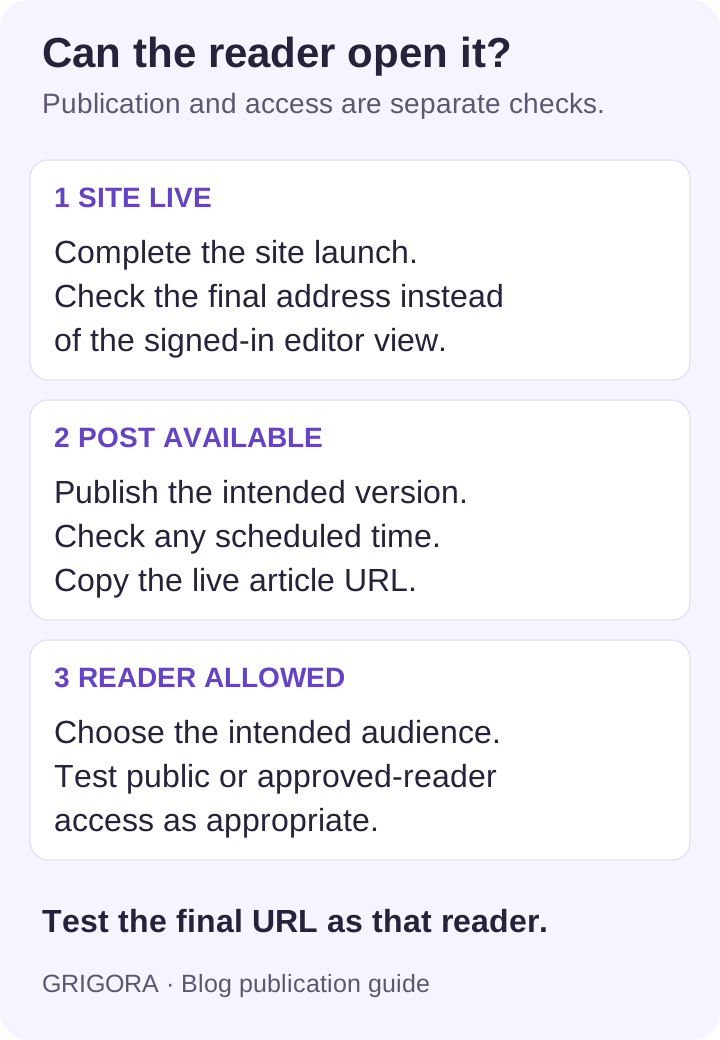
For example, a post can show “Published” in an editor while the whole site remains in coming-soon mode. You can see it because you are signed in; a new visitor sees only the holding page. Launching the site and checking the public URL resolves that particular problem. If the blog is deliberately private, test it as an approved reader instead of switching it to public.
What draft, published, public and indexed mean
| State or setting | What it controls | What to verify |
|---|---|---|
| Draft | The author’s saved work; ordinary readers generally do not see it through the live post URL. | Publish when ready, or use a supported preview link with its stated limits. |
| Scheduled | A future publication time rather than immediate release. | Date, time zone and whether the platform has actually released the post. |
| Published / site launched | Content or a site version has been released. | Whether the site and post are both live and the deployment completed. |
| Public / private / password-protected | Who may access the site or post. | Test the actual intended reader, not only the signed-in author. |
| Indexed by a search engine | A search engine has included a URL in its index. | This is different from being able to read a public URL directly. |
A new public blog does not need to appear in Bing or Google before someone can read it. You can share its working URL directly. Search engines still need to discover and evaluate pages, and indexing or a particular ranking does not follow automatically from clicking Publish.
A noindex rule concerns search indexing rather than visitor authentication. Google’s documentation explains its use for engines that support the rule. It does not make a publicly accessible article private. Similarly, hiding a menu item or choosing an obscure URL does not restrict access to someone who has the link.
Where to check on common platforms
The examples below were checked on 2 November 2026. Controls depend on the platform/editor, so follow the linked current instructions rather than assuming every builder uses the same button.
| Platform | Publication/access check | Primary guidance |
|---|---|---|
| Blogger | Save keeps a post as a draft; Publish releases it. Reader access is a separate setting under Settings → Permissions, with Public, Private to authors and Custom readers options. | Create/publish a post; control access. |
| WordPress.com | Launch the site if it is in coming-soon mode, then check site visibility and the individual post’s status/visibility. A public post inside a private site does not make the site public. | Launch the site; site visibility. |
| Grigora | Use the publishing workflow for your site/editor. Confirm the site is online, the blog content is included and the final address works. Domain connection and article setup are separate from writing a draft. | Classic CMS guide, labeled legacy; current publishing/domain terms. AI-built sites use CMS collection/layout workflows rather than assuming classic controls. |
A custom domain name is optional if your platform provides a suitable hosted address. If you connect one, check the exact hostname, required DNS records, ownership and HTTPS status using your platform’s instructions. A working hosted URL with a broken custom domain points to a different problem from an unpublished post. Grigora’s website publishing starts with a trial; paid website plans include connection of a domain you own, with registration/renewal separate.
Test the page as the reader who will receive it
- Copy the final article URL using the site’s reader-facing link. Do not send an admin/editor address or assume a temporary preview link behaves like the live page.
- For a public blog, open a private/incognito window where you are not signed into the site. Check the article, not just the homepage.
- For a restricted blog, test the supported invitation/sign-in or password flow as an intended reader. Also check that an unauthorized visitor cannot read protected content.
- Read on a phone and a larger screen. Try the menu, important links, images and any contact/signup controls you actually offer.
- If a new version does not appear, confirm that publishing finished and that you opened the correct address before assuming the browser cache is responsible.
- Share the tested URL with the intended audience. Keep a note of the platform, address and symptom if you need support.
Build a mobile-friendly blog by checking your own article content, images and controls. A theme demo that looks great on any device still needs testing with your real layout; record the browsers and screen sizes you actually checked.
If other people still cannot see the blog
| What the reader sees | Likely check | Useful next action |
|---|---|---|
| Coming-soon or maintenance page | Whole-site launch/maintenance setting, even if the post is published. | Check site-level status, complete publication and retest signed out. |
| Login, invitation or password screen | Intentional or accidental audience restriction. | Keep restrictions if needed; confirm the reader has the correct access. Change visibility only when public access is intended. |
| 404 or “not found” | Wrong slug, editor/preview URL, unpublished post or route not included. | Copy the live URL from the site and check publication. If an old URL moved, arrange a relevant redirect. |
| Old content | Wrong deployment/address, incomplete publish or a cached version. | Confirm the current version and final address, then use the platform’s cache guidance where relevant. |
| Domain/security error | DNS, domain connection/renewal or certificate problem. | Compare the platform-provided address and custom domain, then follow host/domain support instructions. |
| Readable by link, absent from search | Discovery/indexing rather than ordinary reader access. | Check search settings, intentional noindex rules, crawl access and webmaster reports separately. |
When asking support, provide the reader URL, time, browser/device and exact error or a screenshot without private account details. Describe whether it fails for everyone or only a restricted reader, and whether the hosted address works. That evidence is more useful than changing several unrelated settings at once.
Also worth reading3 Ways to Start a Blog Without a Domain
Optional: 21 useful checks for a public blog launch
These checks help prepare a useful public site. They are not 21 technical conditions that every blog must satisfy before anyone may view it. A logo, analytics account, newsletter, custom domain or large stock of articles is not required for basic reader access. Prioritize the checks that apply to your actual project.
A few ready-to-go blog posts can help with the first weeks of writing, but they are optional preparation. Review Privacy Policy and Terms of Service pages against the actual activities and applicable requirements, and if preparing an email sequence, check signup expectations, delivery setup and unsubscribe behavior before offering it.
- 1. Define the reader and purpose. Name the problem the blog helps with and the first article a new reader should find. This guides the structure without promising future audience size.
- 2. Check the address. Use a short, accurate hosted address or domain you control. Check spelling, the version you share and who handles any renewal. Keywords in a domain do not establish a ranking outcome.
- 3. Confirm hosting/publication. Know which service keeps the site online, when a trial or subscription ends, and how to obtain support. Avoid assuming a host makes a site continuously available under every condition.
- 4. Make the identity clear. Use a readable site name and consistent visual treatment. A simple text title is sufficient if you do not yet need a logo; do not delay a useful post to buy branding.
- 5. Use a readable theme/layout. Check navigation, paragraph width, headings and contrast. Inspect whether the page looks great on any device you actually tested rather than assuming a responsive theme needs no review.
- 6. Choose a manageable content plan. Keep a short list of reader questions and the material needed to answer them. Schedule work at a pace that allows research and review.
- 7. Prepare enough useful content. One complete article can be a valid first version. A few ready-to-go blog posts may help your schedule, but no minimum batch size establishes quality or search performance.
- 8. Add accurate About/contact information. Explain who publishes the work and how a reader can ask a question or report a correction. Check that the route works without exposing unnecessary private details.
- 9. Review titles and descriptions. Give each public article an accurate title, distinct description and sensible headings. Remove placeholder copy and links to unrelated or missing pages.
- 10. Check images and rights. Use suitable file dimensions and compression, verify legibility on a phone, supply appropriate alt text/captions and record permission or licensing where needed.
- 11. Test a mobile-friendly blog. Read the complete post on a phone. Check menus, tables, figures and buttons for clipping or unwanted sideways scrolling. Essential instructions should remain readable.
- 12. Record browser coverage. Try the browsers/devices most relevant to your readers and fix material problems. Report only what you tested rather than claiming universal compatibility.
- 13. Protect publishing access. Use supported strong account security, sensible contributor roles and a recovery contact. Check form behavior and remove unused integrations; SSL does not settle all account or application security questions.
- 14. Choose measurement deliberately. Analytics can help evaluate real visits if appropriate. Define the question first, check data/consent requirements and test the chosen setup. Analytics is optional for making a post readable.
- 15. Keep a recovery plan. Know what your platform can restore or export and keep suitable copies of source writing and images. Confirm the scope of any version history; it is not automatically a complete off-platform backup.
- 16. Match policies to the site. Privacy Policy and Terms of Service pages should reflect the data, forms, commercial activity and rules that actually apply. Requirements vary by location and activity; a generic template does not establish compliance.
- 17. Share through relevant channels. Choose a launch message and audience that fit the project. Do not require a public campaign for a private class blog or promise a particular visitor count.
- 18. Check social links if used. Link only to intended current profiles. Test them and avoid empty icons, placeholder accounts or third-party embeds that add little value.
- 19. Check email only if offered. If preparing an email sequence, set accurate signup expectations and use the supported permission/unsubscribe process. Newsletter delivery setup, limits and third-party fees may apply; a website plan is not a blanket sending entitlement.
- 20. Review the final page. Proofread the actual published version, verify claims and links, and test important interactions. Keep any test submission controlled and remove private test data appropriately.
- 21. Assign the next owner/task. Decide who monitors corrections, renewals, access and future updates. Use platform tools for the work they actually support; no promotional platform section is needed to make a blog viewable.
If the public URL works for a signed-out reader and the content is ready for that audience, you can share it. Keep a short list of later improvements instead of treating every optional marketing tool as a launch blocker. If the intended audience is restricted, preserve those access boundaries when sharing or troubleshooting.
Frequently asked questions
Publish the blog and allow the intended readers access. For public access, check that the site is live, the post is published and the visibility is public, then open the reader-facing URL while signed out.
No. Saving generally keeps work in the editor as a draft; publishing releases it according to the site’s workflow and access settings. A supported preview link may provide limited access without publication.
Not necessarily. Site-wide coming-soon/private settings or individual restrictions can still limit access. Confirm both site and post status and test the intended reader.
No, if the platform provides a suitable hosted address. A custom domain requires its own registration/connection and does not replace publication or audience settings.
You may be signed in as the author, using an editor/preview link, or seeing a version behind coming-soon or private settings. Copy the final URL and test it as a signed-out public reader or an authorized private reader.
No. Someone can read a public article directly through its working URL before a search engine includes it. Discovery, crawling, indexing and rankings are separate from ordinary reader access.
Some platforms provide preview links or private/invited-reader access. Check the exact limits and choose a supported method appropriate for the content. An obscure URL or noindex rule is not a substitute for access control.
No. The checklist is preparation guidance, not a universal access requirement. Prioritize publication, intended access, useful accurate content and essential functionality; optional branding, analytics and marketing can follow as needed.
Practical writing on building a site, growing an audience and sending email people open. No more than one a week.

Karan Singh Bhakuni
118 articles on the Grigora blog
More on Guides

Guides
What Size Should Blog Post Images Be? Widths and KB
Measure the space the image fills, choose a sensible density target, and check the file visitors actually download. Practical widths, file budgets and format comparisons.
23 Sept 202615 min read
Guides
3 Ways to Start a Blog Without a Domain
You can publish without buying a custom domain. Compare three routes, check free-plan and trial limits, publish your first post, and plan for exports and redirects if you move later.
7 Dec 202310 min read
Guides
How to Write Blog Posts Faster: 30 Practical Tips
A practical workflow and 30 writing tips, with a reusable brief and a timing worksheet to improve your process while keeping accuracy and review in place.
16 Nov 202312 min read