Free Featured Image Finder
Paste any URL. We pull the og:image, twitter:image or hero image the page is shared with. Preview it, copy the link, and download in one click.
What the Featured Image Finder does
When you share a URL on LinkedIn, Slack, iMessage or Facebook, the platform scrapes the page and shows a single image as the preview. That image is usually set in the page's <head> as og:image, sometimes twitter:image, occasionally a schema.org Article image, and as a last resort, the first big inline image on the page.
The Featured Image Finder reads the same HTML that LinkedIn reads, in the same priority order, and shows you exactly which image will appear in the preview. You can preview it before saving, copy the absolute URL, or download the file in one click. It is the fastest way to audit your own social previews, recover an asset whose original you have lost, or pull hero images from competitors for research.
How to use the Featured Image Finder, step by step
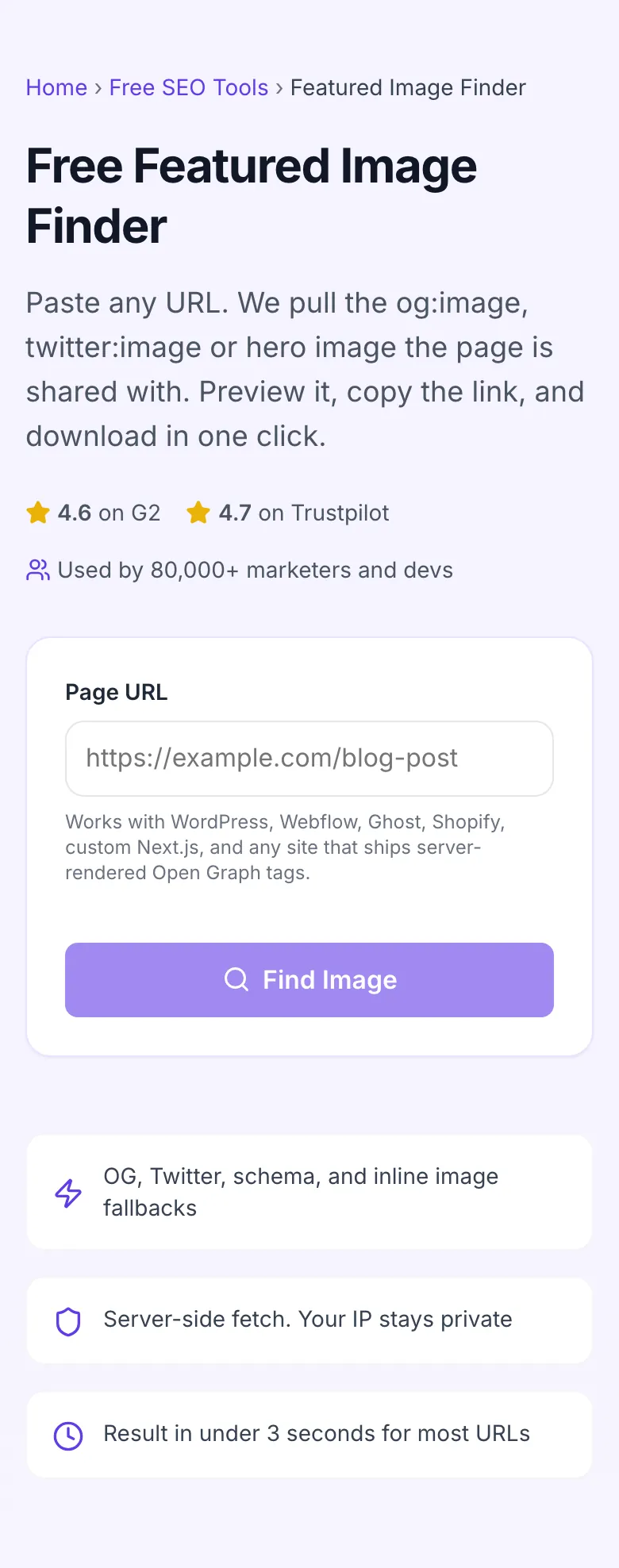
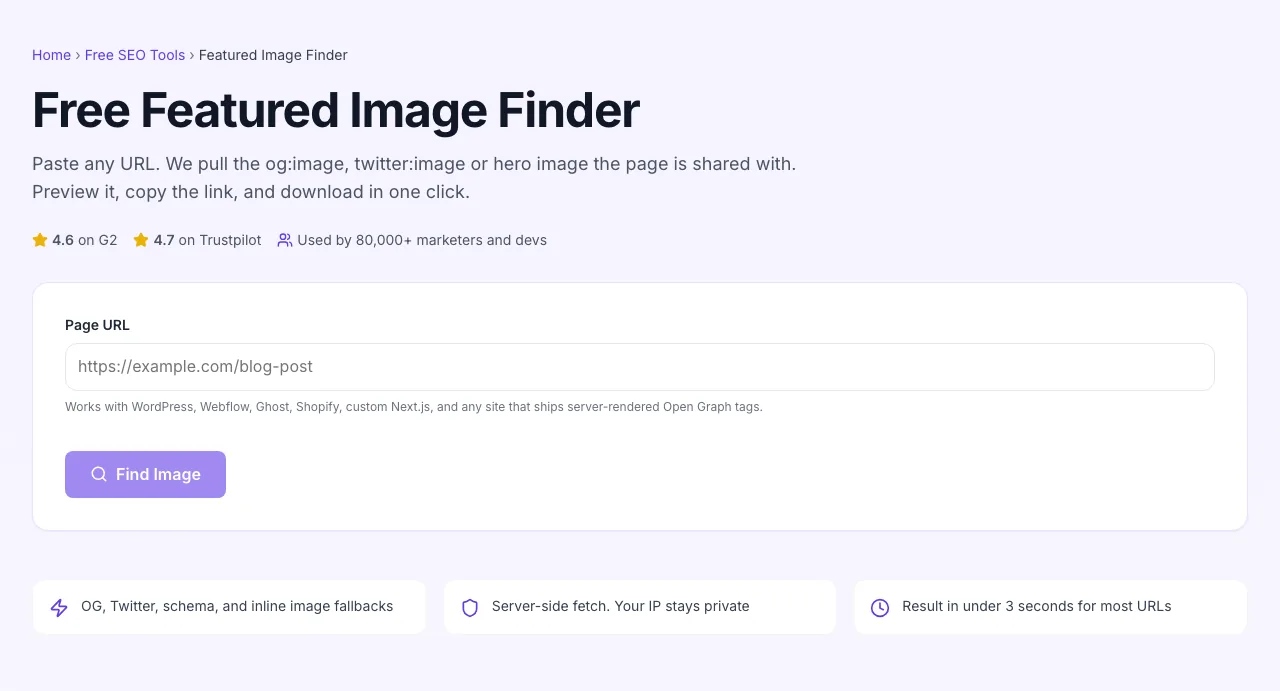
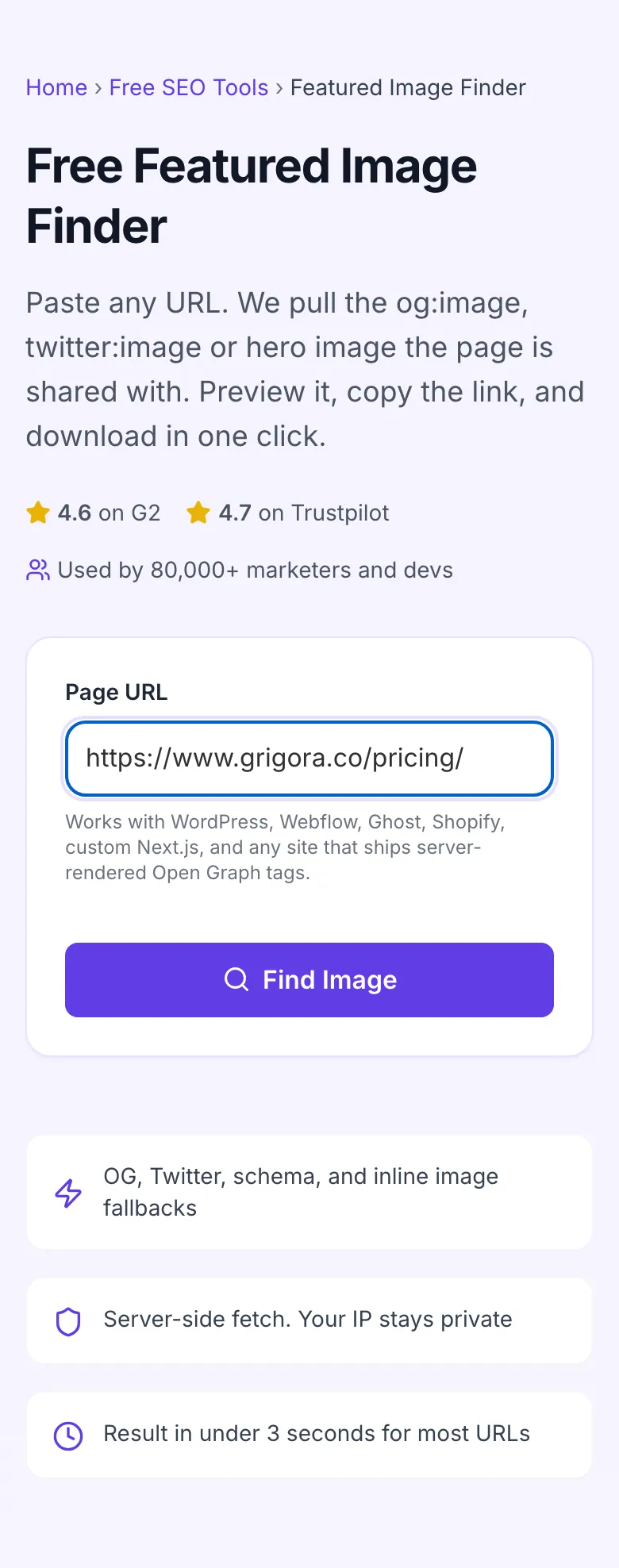
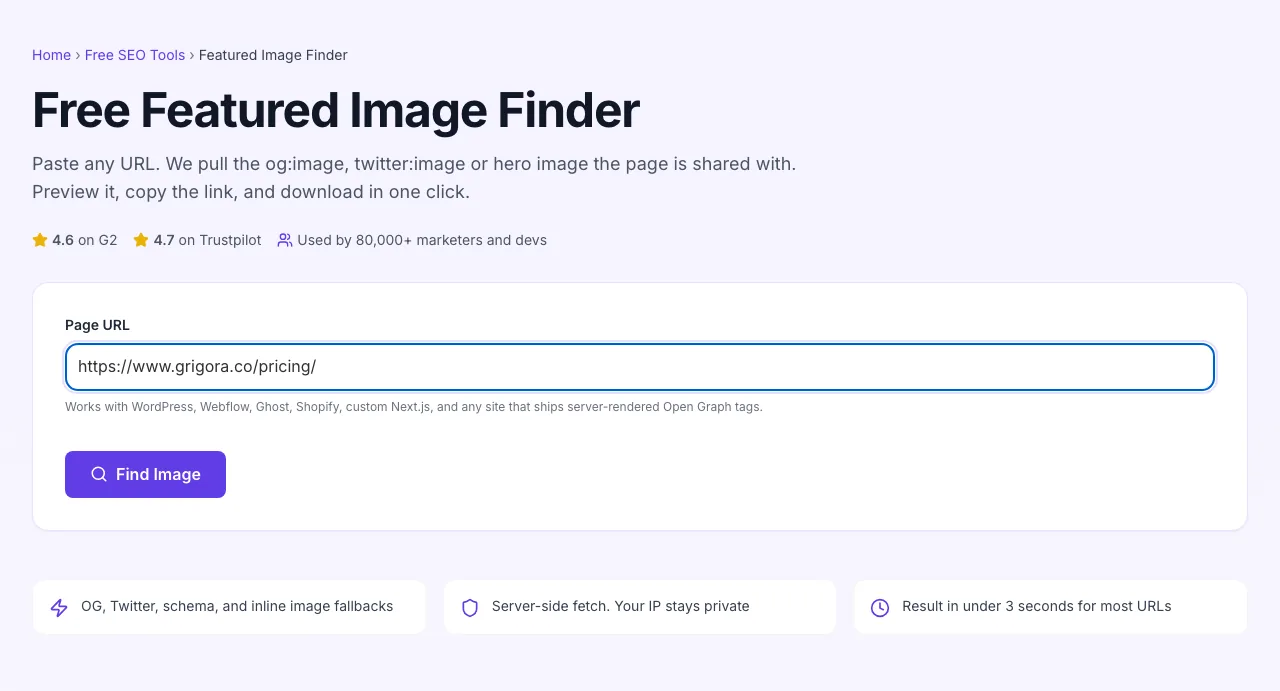
Real screenshots of the tool, taken while running it with the Find Image button.
- 1
Add your input
Paste or type into the field Featured Image Finder works from.
- 2
A page URL in place
With a page URL entered, Featured Image Finder is ready to run.
- 3
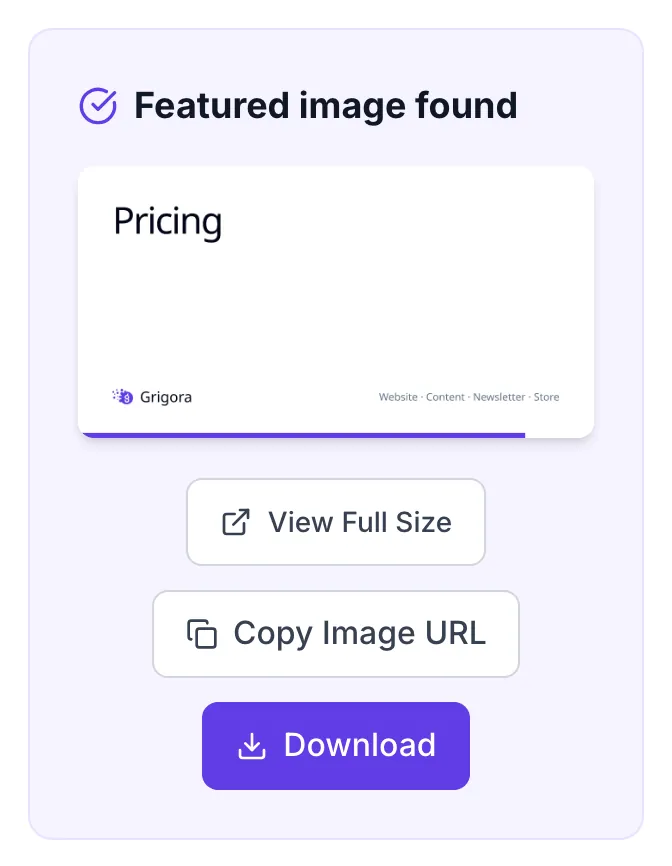
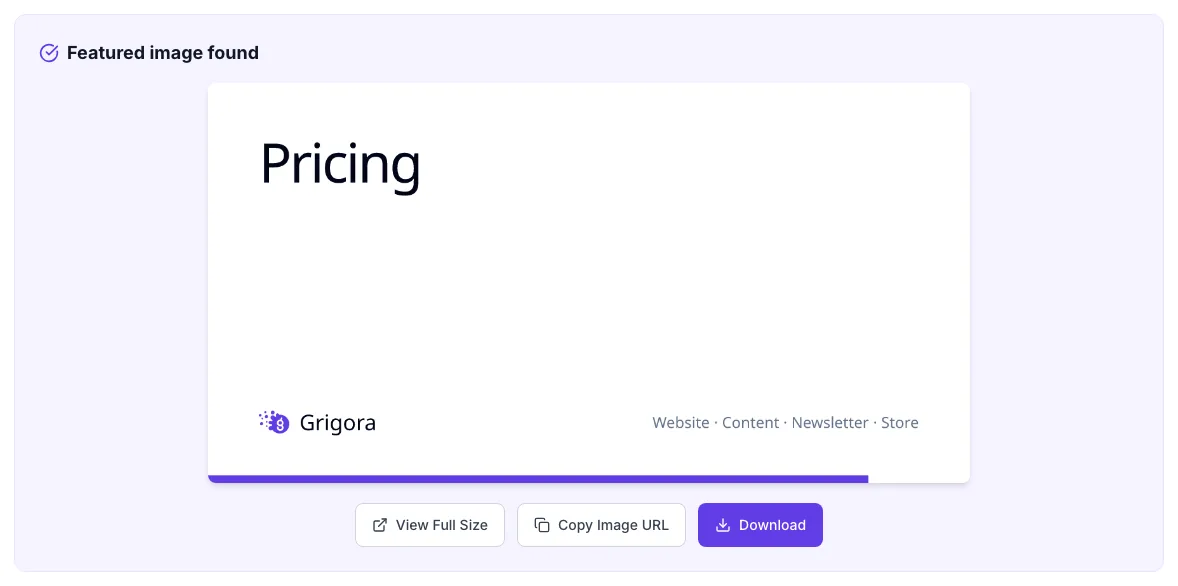
See what Find Image produces
Clicking Find Image runs the check and shows the result right below.
How to find a featured image
Five steps, under thirty seconds.
Paste a URL
Drop in any public article, landing page or product URL. The tool accepts http or https.
Click Find Image
The finder fetches the page server-side, parses og:image, twitter:image and schema markup, and returns the highest-priority match.
Inspect the preview
Confirm the image is the one you expected. Check resolution, aspect ratio and quality before saving.
Download or copy URL
Hit Download for the file, or right-click the preview and copy the image address for use in another tool.
Repeat for batch audits
For multi-URL audits, paste each URL in turn. The form resets so you can move quickly through a list.
When marketers use it
Six common workflows where the finder pays for itself.
Auditing your own site's social previews
Run every published URL through the finder before a major launch. Confirm each og:image is the one you intended, is at least 1200x630, and lands under 5 MB. Catching a wrong-image bug before LinkedIn caches it for 7 days saves you the only-cure: post under a new URL.
Competitive research at scale
Pull the hero image from the top 10 SERP results for your money keyword. Spot the visual pattern (illustration vs. photo, dark vs. light, faces vs. abstract) competitors are using and decide whether to match or differentiate.
Recovering an asset you lost
Designer left, original PSD is gone, but the published blog post still has the JPEG you need. Paste the URL, download the file, and you have a 1200x630 JPEG to work back from. Better than nothing, often enough.
Pre-share preview check
About to post a customer's blog link in a deck or sales email? Run it through the finder first. If the og:image is broken or generic, prompt the customer to fix it before you embarrass them in front of a prospect.
Newsletter and roundup curation
Editing a Friday newsletter that links out to 12 articles? Pull each featured image, drop them into your email template, and you have a visually-consistent issue without screenshotting every page.
Mood board and inspiration scrape
Designers often want the hero image of 30 sites for a landing-page mood board. The finder is faster than right-click-save-as on each URL, and gives you a consistent file set regardless of how each site nests its image.
Platform-specific setup guides
How to make sure your og:image is the right one on the CMSes that ship most of the web.
WordPress
- Edit the post → Yoast or Rank Math sidebar → Social tab.
- Set the Facebook image to the full-size version of your featured image (1200x630 minimum).
- Save and re-test the URL here. The finder should return the new image immediately; LinkedIn can cache for 7 days, so use the LinkedIn Post Inspector to flush.
Webflow
- Open the page or CMS item → SEO settings → Open Graph fields.
- Upload an OG image at 1200x630 (PNG or JPEG, under 5 MB). Webflow does not auto-resize, so upload at the right size.
- Publish the site and re-run the finder. Confirm the URL returned matches the one in your CMS settings.
Ghost
- Post settings (gear icon) → Twitter and Facebook cards.
- If left blank, Ghost uses the post's feature image. Make sure that image is at least 1200x630.
- Update and re-test. Ghost serves og:image from CDN, so the finder will return the optimized URL, which is correct.
Shopify
- Theme code → theme.liquid → confirm <meta property="og:image"> resolves the product image at full size, not the {{ product.featured_image | img_url: "300x" }} thumbnail.
- For collection and homepage URLs, set a default og:image in your SEO app of choice (or hardcode in theme.liquid).
- Re-test each template URL, homepage, collection, product, cart, blog post, to confirm coverage.
Next.js / React (custom)
- In your <Head> or metadata export, set <meta property="og:image" content="https://yourdomain.com/og/post-slug.png" /> with an absolute URL.
- For dynamic OG images, use Next.js opengraph-image.js conventions or a service like Vercel OG. Confirm the generated image is reachable as a regular HTTPS URL.
- Run each route through the finder after deploy. If the image is missing, your server is not flushing OG meta into the SSR HTML.
Grigora vs. other tools
A side-by-side of how the Grigora finder stacks up against the alternatives.
| Capability | Grigora | OpenGraph.xyz | Iframely | Smaller free tools | Manual source check |
|---|---|---|---|---|---|
| Free + unlimited | Yes | Limited free tier | Free trial | Free, ad-supported | Manual only |
| Returns og:image priority order | Yes | Partial | Yes | No | Manual |
| Resolves relative URLs | Yes | Yes | Yes | No | Manual |
| Direct download button | Yes | No | Yes | Yes | No |
| Inline preview before download | Yes | No | Yes | Yes | No |
| Handles WebP / AVIF | Yes | JPEG/PNG only | Yes | JPEG/PNG only | Manual |
| No signup | Yes | Account required | Account required | Yes | Yes |
| API for batch use | On request | Paid tier | Paid tier | No | No |
Common errors and how to fix them
If something looks off, the answer is almost always one of these.
"No featured image found" but the page has one
Cause: Page sets og:image via client-side JavaScript, or the meta tag uses a relative URL that did not resolve.
Fix: Open page source (Ctrl/Cmd+U), search for "og:image". If absent, the CMS is failing to render it server-side. Fix your theme or plugin. If present with a relative URL, switch to an absolute https:// URL.
Image returns but it is the wrong one
Cause: Page has multiple og:image tags, or a parent template is overriding the post-level og:image.
Fix: Keep exactly one og:image per page. In WordPress, check that Yoast/Rank Math is not being overridden by a theme function. Re-scrape the URL with this tool to confirm the fix.
Downloaded image is blurry or low resolution
Cause: Site is serving a thumbnail (300x158, 600x315) as og:image instead of the full-size original.
Fix: Set og:image to the full-resolution version (1200x630 minimum). On WordPress, use the "Full" size in the SEO plugin's Open Graph settings, not "Featured medium".
Tool times out or returns 504
Cause: Target server is slow, behind a strict WAF, or rate-limiting our resolver.
Fix: Retry once after 30 seconds. If it persistently fails, the site is blocking automated fetches. There is no clean workaround; load the page yourself and grab the image manually.
CDN-transformed URL returns a 404 when downloaded
Cause: Cloudinary, imgix or Sanity image URLs include short-lived signing parameters that expire.
Fix: Re-run the finder right before you need the file. Or, contact the site owner to publish a stable, unsigned og:image variant.
Image is correct but is shown rotated 90°
Cause: Original JPEG carries an EXIF orientation flag that some browsers honor and others ignore.
Fix: Open the file in any image editor (Preview, Photoshop, Photopea), let it auto-rotate based on EXIF, then re-export. Strip the EXIF flag during export to prevent it recurring.
WebP image will not open in older tools
Cause: Some sites serve WebP-only og:images; older Photoshop, Sketch and email clients reject the format.
Fix: Convert WebP to JPEG or PNG using any free converter (Squoosh, CloudConvert) before importing into the older tool. The pixels are identical.
CORS error when trying to render the URL inline
Cause: The image host blocks cross-origin requests, so an <img> tag works but fetch() to a Canvas does not.
Fix: You do not need to render through a Canvas, download the file with the button provided, then upload it wherever you need it. CORS only matters for in-browser pixel manipulation.
Original data from our 2026 audit
We ran 2,400 random pages through this tool to see how OG image hygiene looks in the wild.
Frequently asked questions
Twelve questions that cover most of what users ask us about featured images.
Related free tools
Other utilities that pair well with the Featured Image Finder.
Broken Image Checker
Find every image on a page that fails to load.
Try itMeta Tag Generator
Generate full og:image, og:title and twitter:card markup for any page.
Try itOG Image Preview Tool
See how a link renders when it is shared.
Try itSocial Image Cropper
Crop an image to the aspect ratio each network expects.
Try itImage Size Compressor
Squash a heavy OG image under the 5 MB social-platform cap.
Try itCustom OG Image Maker
Build branded OG images from a template instead of recycling stock photos.
Try itMeta Description Generator
Pair your fixed og:image with a sharp og:description that drives the click.
Try itAudit a URL right now
Paste a link, see the image LinkedIn will show. Free, unlimited, no signup.
Try the Featured Image Finder