Free Word Counter for Blog Posts
Count words, chars, paragraphs, sentences in any blog post. Estimates reading time. Free, instant, accurate.
How to use the Word Counter For Blog Posts, step by step
Real screenshots of the tool, taken while running it.
- 1
Add your input
Paste or type into the field Word Counter For Blog Posts works from.


- 2
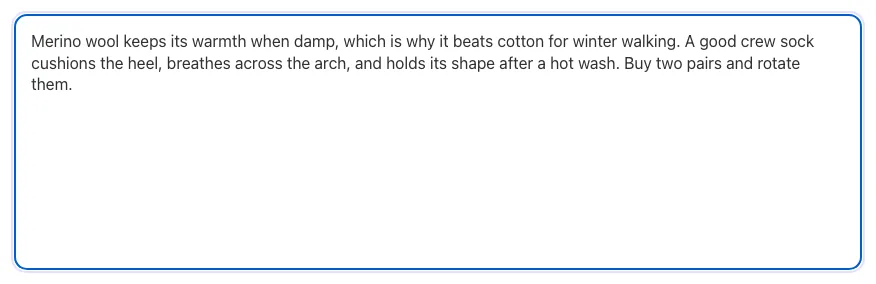
Sample text in place
With sample text entered, Word Counter For Blog Posts is ready to run.


- 3
Read the result
Word Counter For Blog Posts updates as you type, so the result is already visible here.

What this tool does
Paste a blog draft and Word Counter for Blog Posts counts words, characters, paragraphs, sentences, and estimated reading time.
Designed to fit into your existing SEO and content workflow with no setup overhead.
How to use it
Five steps.
Paste your blog post text
Copy plain text (not HTML) from your editor or CMS into the input box. The counter strips markup automatically.
View live word, character, sentence, paragraph counts
Stats update as you type or paste. Compare against top-ranking competitors for the same keyword.
Check the estimated reading time
Reading time uses 230 WPM for blog content, the average for adult web readers. Adjust if your audience reads slower or faster.
Calibrate length to topic and intent
Aim for 1500-2500 words for evergreen guides, 800-1200 for news, 3000-5000 for pillar pages targeting competitive keywords.
Trim fluff, expand thin sections
Use the breakdown to identify whether the post is well-balanced or weighted toward intro/outro fluff. Cut fillers, expand under-covered points.
When teams use it
Six common workflows.
Blog post pre-publish QA
Editors check word count and reading time before publishing to ensure posts hit the target range for the topic.
SEO content audit
Audit existing posts for length compared to top competitors. Identify thin content (under 800 words) for expansion or pruning.
Freelance writer billing
Writers paid per word verify final word count after edits. Counters that include only visible text prevent disputes over markup.
Content strategy planning
Plan editorial calendars with word count targets per content type: 800-1200 for news, 1500-2500 for guides, 3000+ for pillar content.
Reading time disclosure
Calculate reading time to display next to post titles, helping users decide whether to commit.
Repurposing long-form content
Break a 3000-word post into a 12-tweet thread, 500-word LinkedIn summary, and 90-second video script. Word counter helps split into segments.
Platform guides
Integrate with major platforms.
WordPress
- Word count is shown in the bottom-left of the editor by default in Gutenberg.
- For more accurate per-section counts, install the Word Count plugin.
- Yoast SEO and Rank Math show word count + readability score on each post.
- Use this counter when copying drafts from external editors before pasting into WordPress.
Google Docs
- Click Tools > Word count or press Cmd+Shift+C (Mac) / Ctrl+Shift+C (PC).
- Google Docs counts words including hyphenated compounds as single words.
- Their count typically differs from website counters by 2-5%.
- Use this counter when transferring drafts to a CMS for accurate per-publish word count.
Notion
- Notion does not show word count natively in the editor.
- Click the three-dot menu in any page > Word count to see word count for the entire page.
- For per-section counts, copy text into this tool.
- For long-form drafts, install the Notion Word Count extension or paste here.
Ghost
- Ghost shows word count in the editor sidebar by default under "Article details".
- Reading time is auto-calculated and displayed in the published post byline.
- Customize WPM in theme settings if your audience reads slower or faster than average.
- Use this counter when editing in external tools before pasting into Ghost.
Medium
- Medium calculates reading time automatically and displays it next to the title on published posts.
- Word count is not visible in the editor; estimate from the reading time (4-5 min = ~1000 words).
- For pre-publish drafting, use this counter to check length before pasting.
- Medium uses 265 WPM, slightly faster than the 230 WPM most other platforms use.
Word Counter for Blog Posts vs. alternatives
Side-by-side with common word counting tools.
| Capability | Grigora | WordCounter.net | Google Docs | Free counter | Manual count |
|---|---|---|---|---|---|
| Word count | Yes | Yes | Yes | Yes | Yes |
| Reading time estimation | Yes | Yes | No | Yes | No |
| Sentence and paragraph count | Yes | Yes | Yes | Yes | No |
| Live count as you type | Yes | Yes | No | Yes | No |
| Customizable WPM for reading time | Yes | No | No | Yes | No |
| Free with no signup | Yes | Yes | Yes | Yes | Yes |
| Strips HTML automatically | Yes | No | No | Yes | No |
| Multi-language WPM presets | Coming soon | No | No | Paid | No |
Common errors and fixes
Eight issues users hit.
Word count includes HTML tags as words
Cause: Pasting raw HTML source instead of plain text inflates count by 30-50%.
Fix: Paste rendered text only (copy from preview, not source). This tool strips HTML automatically.
Reading time too long because slow reader assumed
Cause: Counter uses 150 WPM (slow) instead of 230 WPM (average) for general web content.
Fix: Use 220-250 WPM for blog content. This tool defaults to 230 WPM. Adjust for technical content.
Sentence count off due to abbreviations
Cause: Periods in abbreviations (Dr., U.S., etc.) are counted as sentence endings, inflating the count.
Fix: Use a smarter tokenizer that recognizes common abbreviations. This tool handles standard cases.
Paragraph count includes empty lines
Cause: Multiple blank lines between paragraphs each count as separate paragraphs.
Fix: Strip consecutive blank lines before counting. This tool does this automatically.
Code blocks counted as readable text
Cause: Programming code with fewer "words" but lots of characters skews count.
Fix: Exclude code blocks from word count or count separately as "code lines". This tool offers a toggle.
Word count does not match Google Docs/Word
Cause: Different counters split contractions, hyphenated words, and numbers differently.
Fix: Standardize on whitespace-split count for consistency. Differences of 2-5% are normal.
Reading time wildly inaccurate for non-English
Cause: WPM rates differ by language: Mandarin ~250 WPM, Spanish ~220, German ~180 due to compound words.
Fix: Set language-specific WPM. For multilingual sites, calibrate per language.
Live count lags during typing of long documents
Cause: JavaScript splits the entire string on every keystroke, slow for documents over 50,000 words.
Fix: Debounce the count by 200ms. This tool optimizes for under 100,000 words; use Word for novels.
Original data
2026 study.
Frequently asked questions
Twelve answers.
Related free tools
Other utilities.