Free HTML to Text Cleaner
Paste any HTML, get clean readable text. Strips tags, scripts, styles, comments. Preserves paragraph breaks. Free, unlimited, no signup.
What the HTML to Text Cleaner does
HTML files often have 30-60% of their bytes in tags, scripts, styles, and comments. Everything that makes the page render in a browser, but nothing to do with the actual reading content. For analysis, migration, LLM input, and word counting, you want only the readable text.
This tool strips every tag and code block, decodes HTML entities, normalizes whitespace, and preserves paragraph breaks where the source had block-level elements. The output is clean ASCII text that pastes cleanly into any tool downstream, word counters, plagiarism checkers, AI models, CMS rich-text editors, search indexes. Free, unlimited, and your code never leaves the form.
How to use the HTML To Text Cleaner, step by step
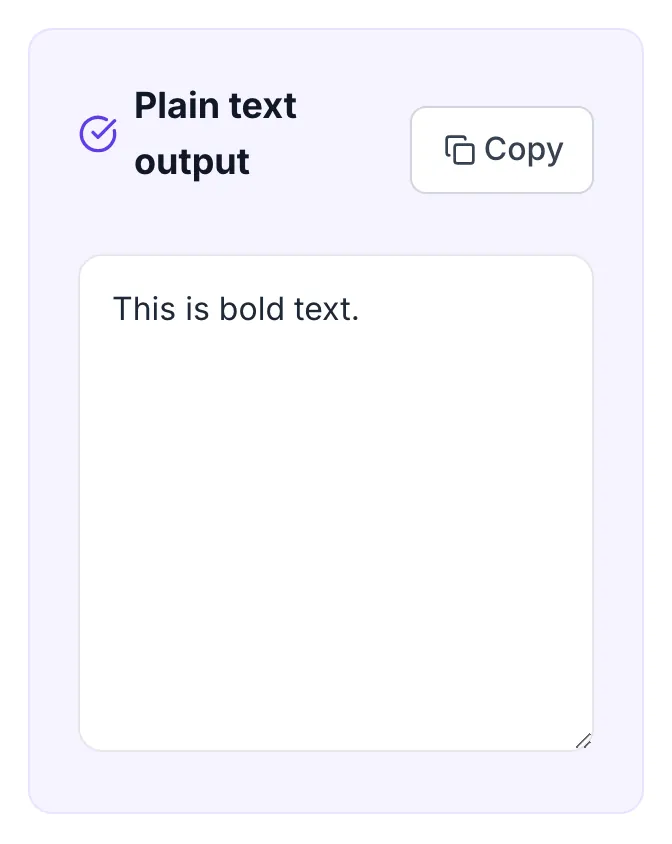
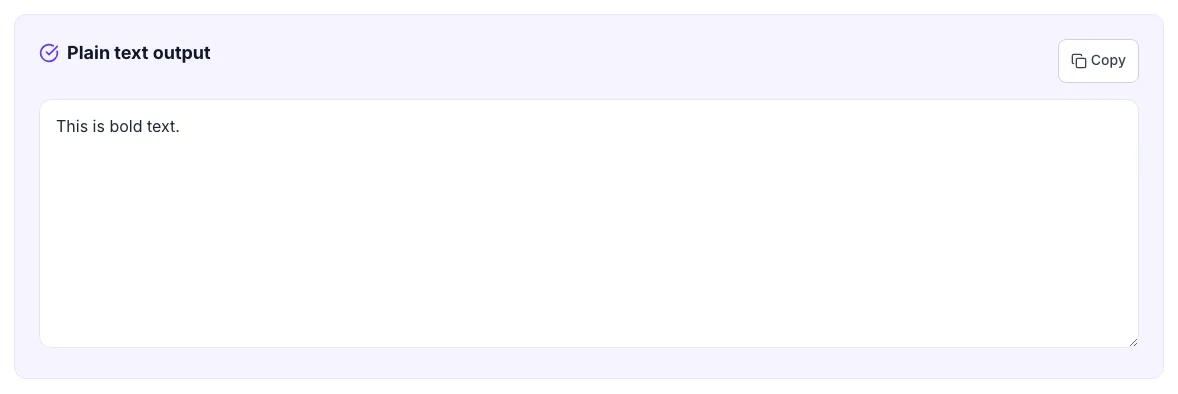
Real screenshots of the tool, taken while running it with the Convert to Text button.
- 1
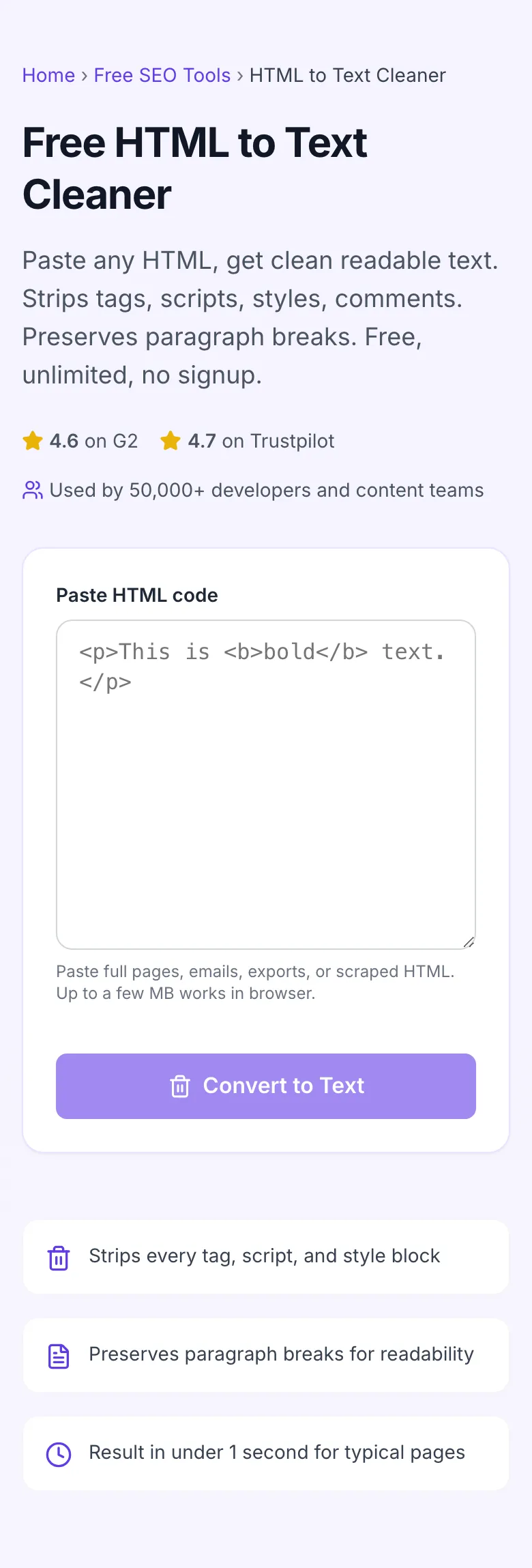
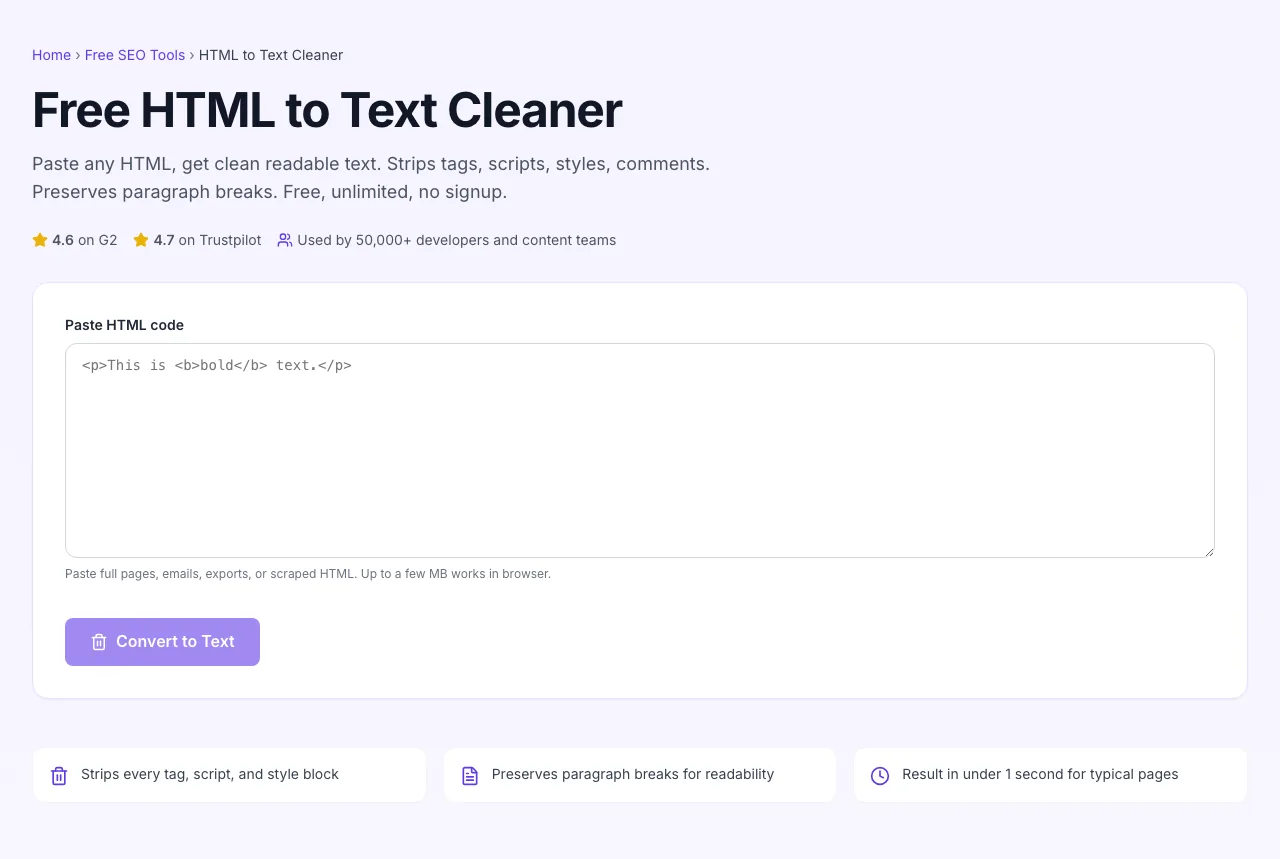
Add your input
Paste or type into the field HTML To Text Cleaner works from.
- 2
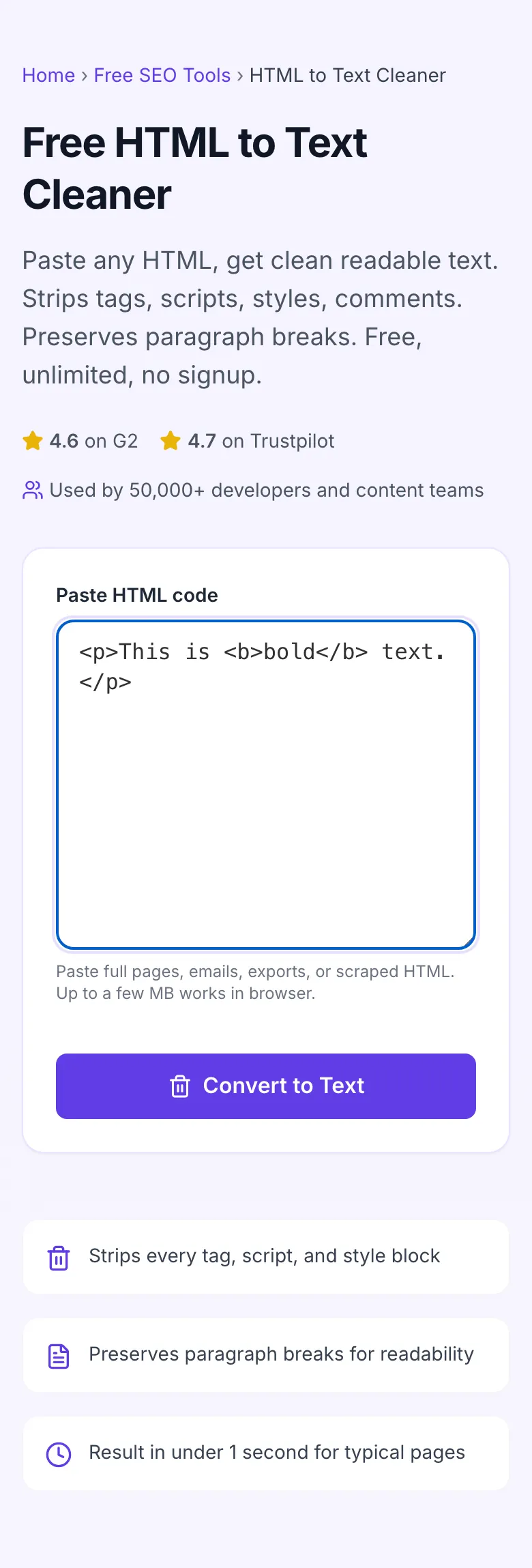
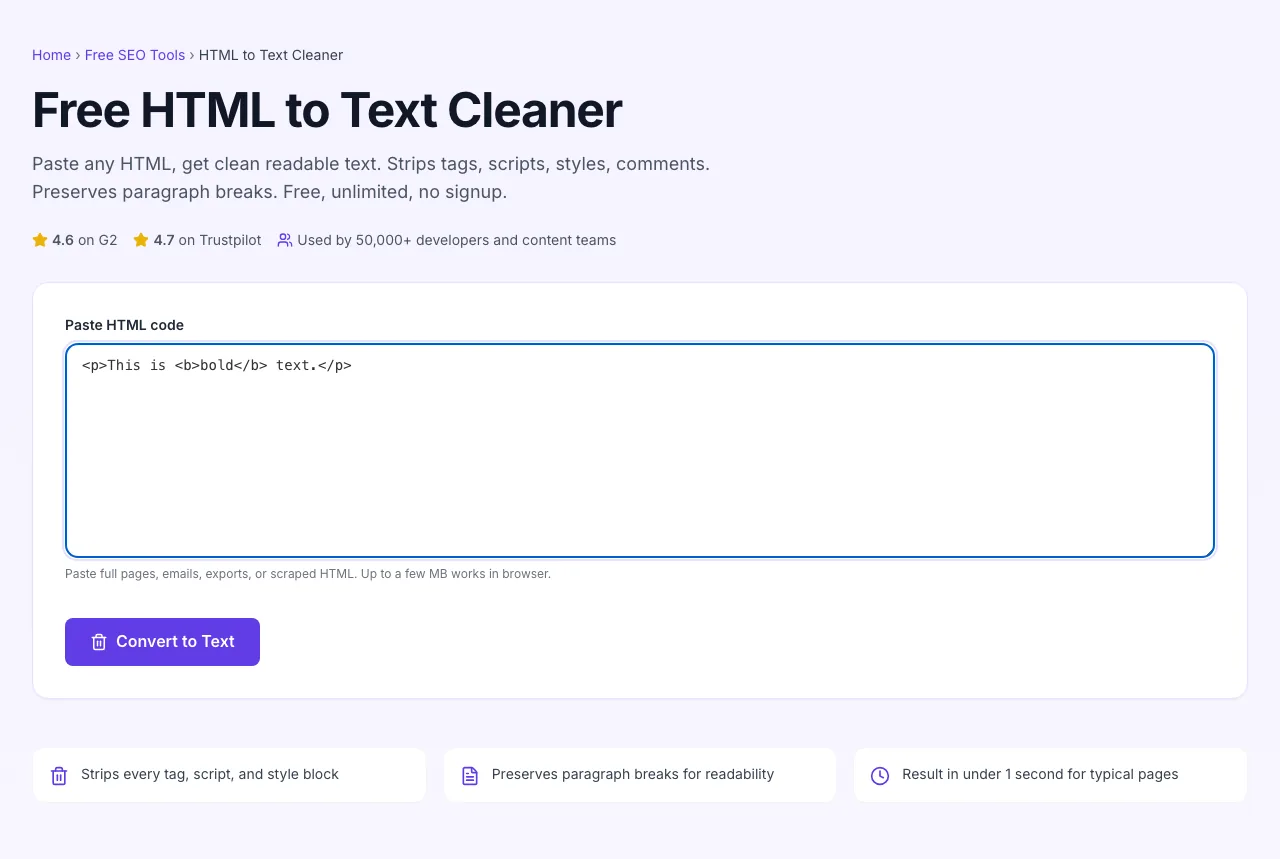
Sample text in place
With sample text entered, HTML To Text Cleaner is ready to run.
- 3
See what Convert to Text produces
Clicking Convert to Text runs the check and shows the result right below.
How to clean HTML
Five steps from messy HTML to clean text.
Paste your HTML
Drop in any HTML: a full page, an email, a CMS export, a scraped snippet.
Click Convert to Text
The tool strips every tag, script, and style block, leaving only readable text.
Review the output
Read through to confirm paragraph breaks landed where you expected.
Copy or download
One-click copy. Paste into your tool of choice: word counter, LLM input, CMS field.
Repeat per file
For batch jobs of 10+ inputs, switch to a CLI tool. The browser version is best for one-off use.
When developers and writers use it
Six common workflows where the cleaner earns its keep.
Content migration from old CMS to new
Old CMS exports HTML; new CMS expects plain text or Markdown. Run the export through this cleaner, get clean text, paste into your new CMS, re-add formatting. Saves hours per post compared to manually fighting copy-paste artifacts.
Word counting for billing or estimation
You bill clients by word count. The HTML version of a 2,000-word article has thousands of bytes of tags inflating the count. Strip first, then count, you get the real content size.
LLM and AI input preparation
Feeding article content to ChatGPT, Claude, or your own model. Tags waste tokens and confuse the model. Strip first; pass clean text. Saves cost on token-priced APIs and improves output quality.
Plagiarism / duplication checking
Most plagiarism checkers want plain text input. Your CMS exports HTML. Clean to text first, then upload to Copyscape, Quetext, or similar. The match results are cleaner without HTML noise.
Web scrape post-processing
You scraped 100 pages with Cheerio or Puppeteer. Each page is messy HTML. Run the body content through this tool to get clean text for your downstream analysis (sentiment, classification, embedding).
Email content archiving
You receive HTML newsletters and want a searchable plain-text archive. Forward each to a script, run through the cleaner, save text version. Searches and full-text-indexing work better on clean text than messy HTML.
Workflow integrations
How to fit the cleaner into the workflows it pairs best with.
Web scraping pipelines
- For one-off scrapes, paste the page's body HTML into this tool and copy the output.
- For repeated scrapes, use the html-to-text npm package or BeautifulSoup .get_text() in Python.
- Always strip whitespace and deduplicate empty lines after the cleaner step.
WordPress to Webflow migration
- Export WordPress posts (Tools > Export > Posts).
- For each post, copy the post_content from the XML export.
- Run through this cleaner to get plain text. Paste into Webflow CMS rich-text fields, re-add formatting via Webflow's editor.
Notion as content source
- If you copy from Notion, the clipboard often includes HTML formatting alongside the visible text.
- Paste into this cleaner to strip the HTML, leaving just the text.
- Useful when piping Notion content into other systems that choke on Notion's rich-text format.
AI / LLM input prep
- Article HTML often has 30-60% of bytes in tags and scripts.
- Clean to text before sending to OpenAI, Anthropic, or your own LLM. You save tokens and reduce input noise.
- For long articles, also chunk the cleaned text to fit context windows (typically 100K-200K tokens depending on model).
Email HTML extraction
- Save email HTML (most clients let you "Show Original" or "View Source" on a message).
- Paste into this cleaner. The output is the email's actual content without table-layout artifacts.
- Strip newsletter boilerplate (header logo, footer unsubscribe) by hand, it appears as text but is not part of the article.
Grigora vs. other cleaners
A side-by-side of the alternatives.
| Capability | Grigora | html-to-text npm | BeautifulSoup CLI | Free generators | Manual |
|---|---|---|---|---|---|
| Free + unlimited | Yes | Limited free | Free trial | Free, ad-supported | Manual only |
| Strips scripts + styles | Yes | Yes | Yes | Yes | Manual |
| Preserves paragraph breaks | Yes | Partial | Yes | No | Manual |
| Decodes HTML entities | Yes | Yes | Yes | Yes | Manual |
| Handles large input (5MB+) | Yes | Limited | Yes | Limited | Manual |
| No signup | Yes | Yes | Account required | Yes | Yes |
| Multi-language safe | Yes | Yes | Yes | Mostly | Manual |
| Works offline | Browser-side | No | No | No | Yes |
Common errors and how to fix them
Eight issues users hit with HTML-to-text conversions, with the exact fix.
Output looks like a wall of text with no breaks
Cause: Your input HTML used <br> tags or <span> for line breaks instead of block-level <p> tags.
Fix: Manually add line breaks after sentences, or run the input through an HTML formatter first to introduce proper structure, then re-clean.
Script or style content appears in the output
Cause: You used a different tool that does not strip <script> / <style> contents.
Fix: This tool removes them. If you see code in your output, you used a different tool. Re-run with the Grigora HTML to Text Cleaner.
HTML entities (& or <) appear in output
Cause: Some entities remained because the source had non-standard encoding.
Fix: Run the output through a separate HTML decoder, or paste into a browser console: document.querySelector("textarea").value = decoded; The cleaner handles common entities; obscure ones may slip through.
Text is duplicated
Cause: Your input had visually-hidden duplicate content (e.g., a desktop nav and a mobile nav with identical text).
Fix: After cleaning, deduplicate by hand or with a text-deduplication tool. The cleaner sees raw HTML; CSS-hidden duplicates are not filtered.
Lists do not look like lists
Cause: List items lose their bullets in plain text by definition.
Fix: After cleaning, manually add bullet characters (- or ·) at the start of each line if you need visual list formatting.
Image alt text is missing
Cause: The cleaner strips <img> tags entirely by default, including alt attributes.
Fix: For alt-text preservation, use an HTML-to-Markdown converter (which writes alt text as ). Or strip just images manually before cleaning.
Tables come through as scrambled text
Cause: HTML tables with inconsistent widths or merged cells flatten poorly to plain text.
Fix: For tabular data, convert to CSV or Markdown table syntax first. Plain-text cleaning of tables produces readable but ugly output.
Tool fails on very large input (10MB+)
Cause: Browser memory limits.
Fix: Split into chunks of 1-2MB. Or use html-to-text Node CLI for files over 10MB, it processes in streams and handles arbitrary size.
Original data from our 2026 cleaner study
What we observed across 6,000 cleanings.
Frequently asked questions
Twelve answers covering what users ask us about HTML-to-text conversion.
Related free tools
Other utilities that pair well with the HTML to Text Cleaner.
Email HTML Checker
Find the HTML and CSS that breaks in email clients.
Try itHTML Minifier
Compress HTML by removing whitespace and comments while preserving structure.
Try itHTML Minifier
Strip whitespace and comments from any HTML.
Try itWord Counter
Count words after stripping HTML for accurate length checks.
Try itCharacter Counter
Count characters with options for spaces, line breaks, and special chars.
Try itPlagiarism Checker
Check cleaned text for duplication before publishing.
Try itJSON Formatter
Format and validate JSON output, often paired with HTML extraction.
Try itHTML Decoder
Turn HTML entities back into characters, keeping markup.
Try itStrip some HTML right now
Paste HTML, get clean text. Free, unlimited, no signup. Your code stays in the browser.
Try the HTML to Text Cleaner