Social Image Cropper
Perfect images for every social platform, instantly.
How to use the Social Image Cropper, step by step
Real screenshots of the tool, taken while running it with the Crop Image button.
- 1
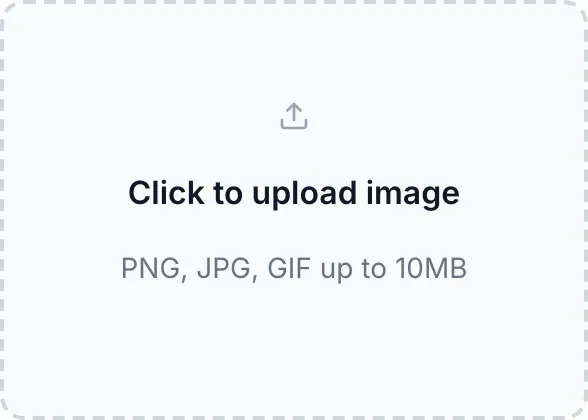
Choose a file
Upload an image. Nothing is kept on a server longer than the request needs.

- 2
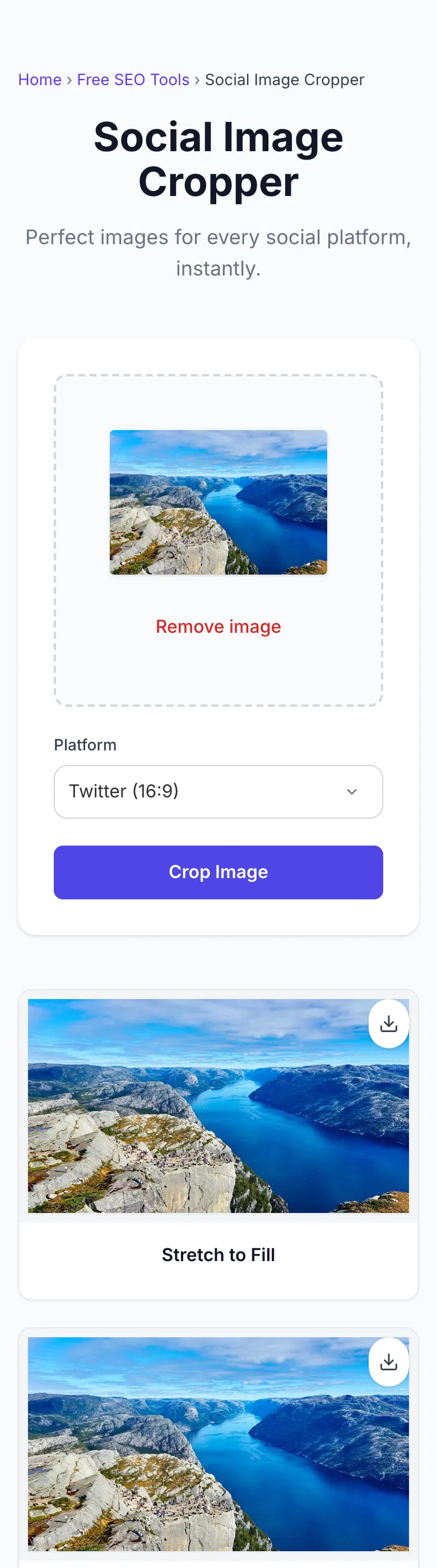
The file is ready
The image loads locally so you can see it before running anything.
- 3
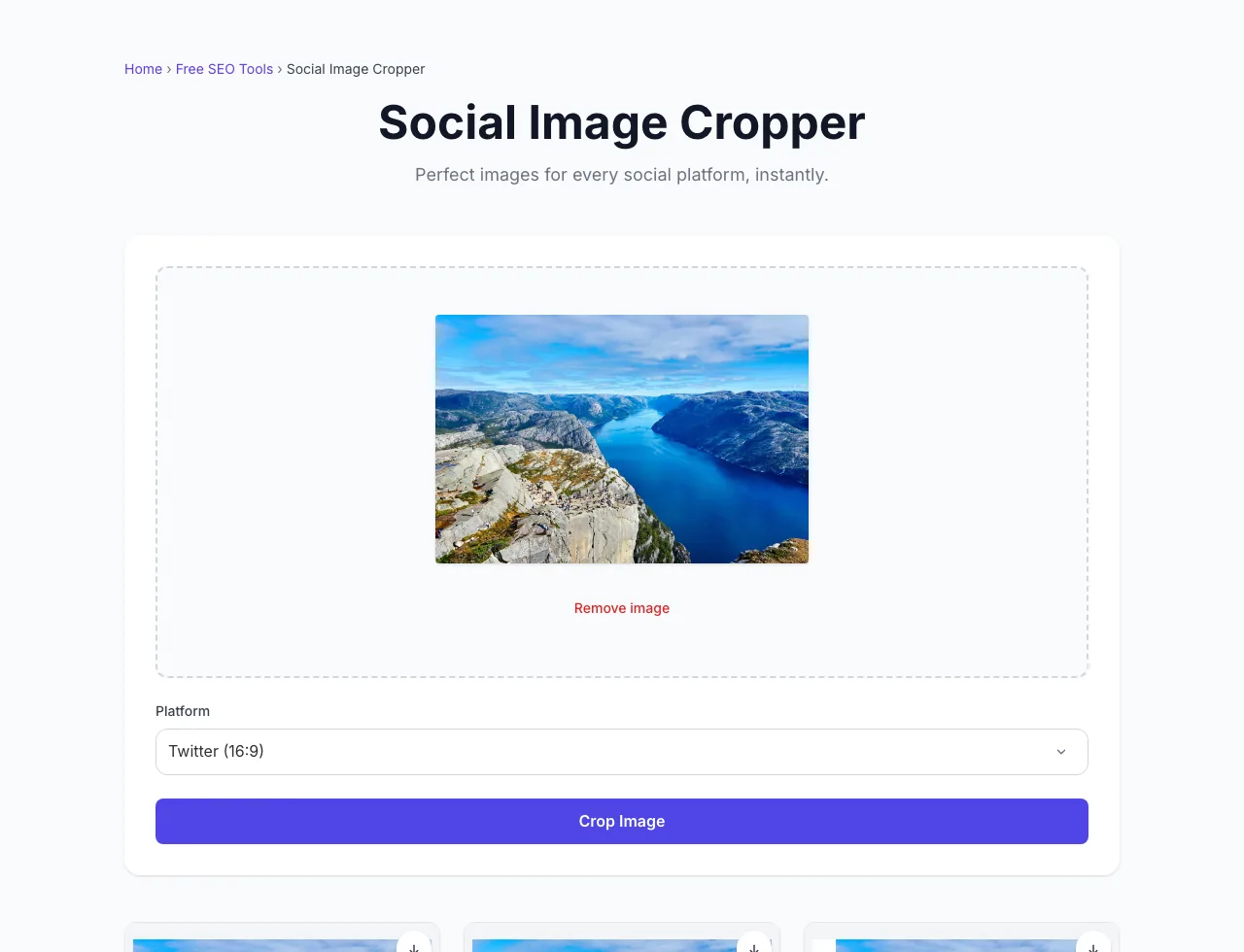
See what Crop Image produces
Clicking Crop Image runs the check and shows the result right below.
What this tool does
Social Image Cropper delivers fast, reliable results for crop and resize images for instagram, facebook, twitter, linkedin, and pinterest. common platform sizes. free, instant.
Designed to fit into your existing SEO and content workflow with no setup overhead.
How to use it
Five steps.
Upload your source image
Drag an image into the dropzone, or click to browse.
Pick a target platform
Choose one of the available presets for Twitter/X, Facebook, Instagram, LinkedIn, or Pinterest.
Process the crop
Run the cropper to generate available stretch, auto crop, and fit variants.
Preview the variants
Compare the generated outputs before choosing the version you want.
Download the JPG
Use the download button on an output card to save that image.
When teams use it
Six common workflows.
Social posts from one source image
Upload a single campaign image and crop it for the selected platform preset before posting.
Product images for social channels
Create a square, horizontal, or vertical crop from a product photo using the available platform presets.
Creator thumbnail preparation
Quickly test whether a source image works better as a fill-style crop or a fit image with padding.
Blog hero repurposing
Turn an article hero image into a social-friendly crop for Pinterest, LinkedIn, Facebook, Instagram, or Twitter/X.
Brand asset consistency
Use preset aspect ratios so recurring campaign images keep a more predictable shape across channels.
Profile and announcement graphics
Prepare simple social graphics without opening a heavier design tool for every crop.
Platform guides
Integrate with major platforms.
- Choose the Instagram square preset.
- Upload a source image with the main subject near the center.
- Run the crop and compare stretch, auto crop, and fit variants.
- Use the fit background controls if the full image should stay visible.
- Download the JPG result you prefer.
- Choose the Pinterest 2:3 preset.
- Use vertical source images when possible.
- Preview the generated variants before downloading.
- Pick fit if the source contains text that should not be cropped.
- Download the JPG and add your pin description in Pinterest.
Twitter / X
- Choose the Twitter/X 16:9 preset.
- Keep key content away from the far edges of the source image.
- Generate the crop and compare the result cards.
- Use a JPG output for a simple timeline image.
- Re-run with a different source if the preview crops important content.
- Choose the LinkedIn 1.91:1 preset.
- Use a clean source image with enough horizontal space.
- Generate and inspect each result variant.
- Prefer fit when a logo or text block must remain fully visible.
- Download the JPG result for your post.
- Choose the Facebook 1.91:1 preset.
- Upload a landscape-friendly image for the cleanest crop.
- Run the cropper and review the generated outputs.
- Use the fit card when you want to avoid edge cropping.
- Download the selected JPG result.
Grigora vs. alternatives
Side-by-side.
| Capability | Grigora | Canva | Adobe Express | Free | Manual |
|---|---|---|---|---|---|
| Single-image cropping | Yes | Yes | Yes | Yes | Manual |
| Platform aspect-ratio presets | 5 presets | Varies | Varies | Varies | Manual |
| Fit backgrounds | White, black, blur | Varies | Varies | Varies | Manual |
| Batch processing | No | Sometimes paid | Sometimes paid | Varies | Manual |
| Safe-zone overlays | No | Varies | Varies | Varies | Manual |
| WebP export | No | Varies | Varies | Varies | Manual |
| JPG download | Yes | Yes | Yes | Yes | Manual |
| No-account use | Yes | Varies | Varies | Varies | Yes |
Common errors and fixes
Eight issues users hit.
No image selected
Cause: The crop button is disabled until an image file is selected.
Fix: Upload an image from the dropzone, then choose a platform preset.
Upload rejected
Cause: The selected file is not a browser-readable image.
Fix: Try a common JPG or PNG file exported from your image editor.
Processing failed
Cause: The crop API returned an error or could not process the uploaded image.
Fix: Try a smaller image or a different file format, then run the crop again.
Fit preview has the wrong background
Cause: The fit variant uses the currently selected background option.
Fix: Choose white, black, or blur under the Fit result card.
Download is JPG only
Cause: The current result links save generated crops as JPG files.
Fix: Convert the downloaded JPG in an image editor if you need another format.
Only one preset can run at a time
Cause: The current page processes one selected platform preset per submission.
Fix: Download the first result, switch presets, and run the crop again.
Transparent areas become flattened
Cause: JPG output does not preserve transparency.
Fix: Use a solid or blurred fit background before downloading.
Large images feel slow on mobile
Cause: High-resolution files take more memory and time to preview or process.
Fix: Resize the source image before uploading on older phones.
Tool facts
Current page capabilities.
Frequently asked questions
Twelve answers.
Related free tools
Other utilities.