Encode text to Base64 online, emoji included
The result appears here as you type.
The browser btoa function throws on anything above the Latin-1 range, which is why so many encoders fail on an emoji or a Cyrillic name. This one converts to UTF-8 bytes first, so any text encodes correctly. A Base64 encoder for strings rather than files. Base64 is an encoding, not encryption, so never use it to hide a secret.
If it will not parse
These are the messages people usually arrive with: Failed to execute btoa on Window, The string to be encoded contains characters outside of the Latin1 range, InvalidCharacterError. Paste the input that produced one and the result pane names the problem and points at it.
How to use the Text to Base64 Encoder, step by step
Real screenshots of the tool, captured while running it.
- 1
Open the tool
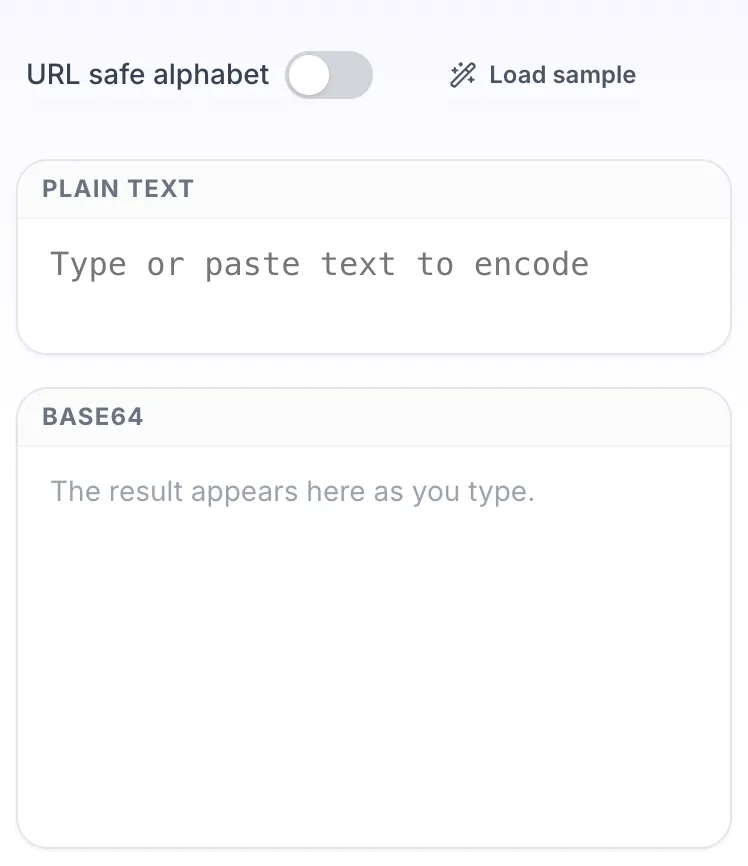
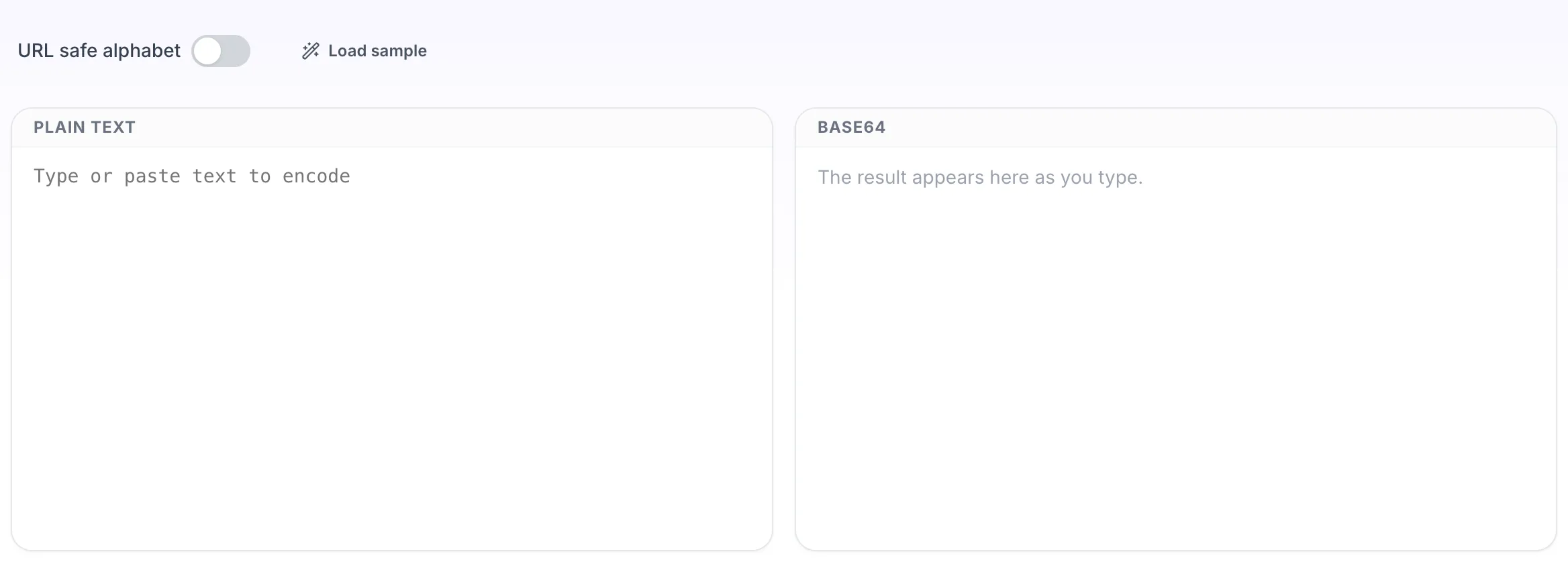
Text to Base64 Encoder opens empty, with plain text on the left and base64 on the right.
- 2
Add your input
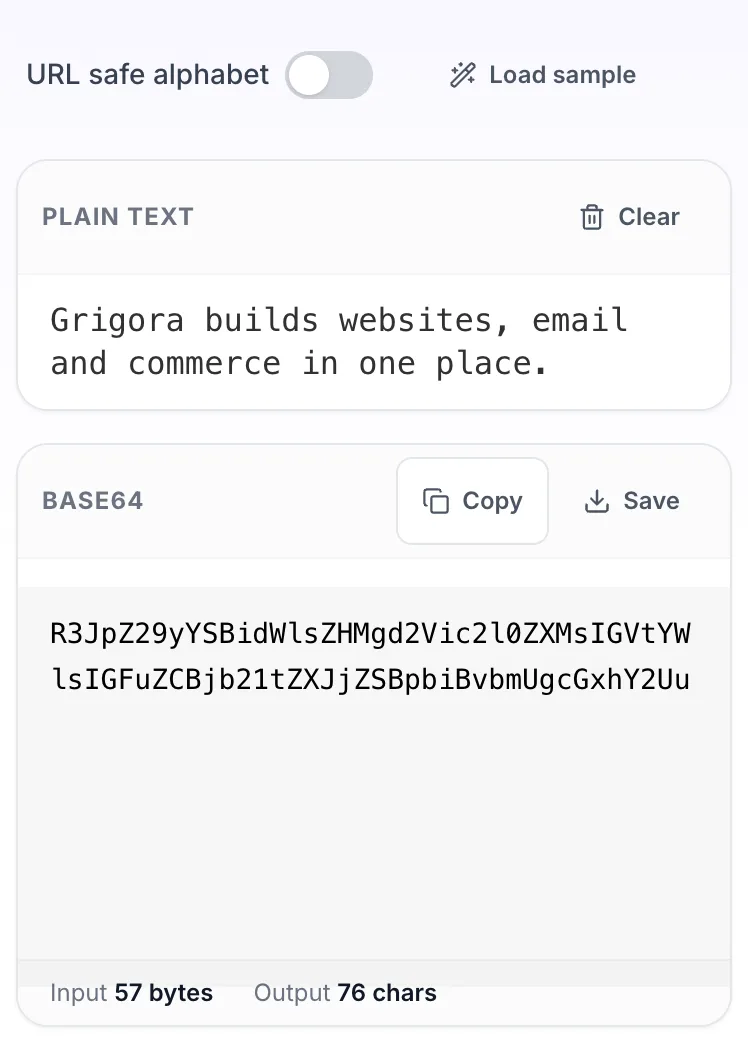
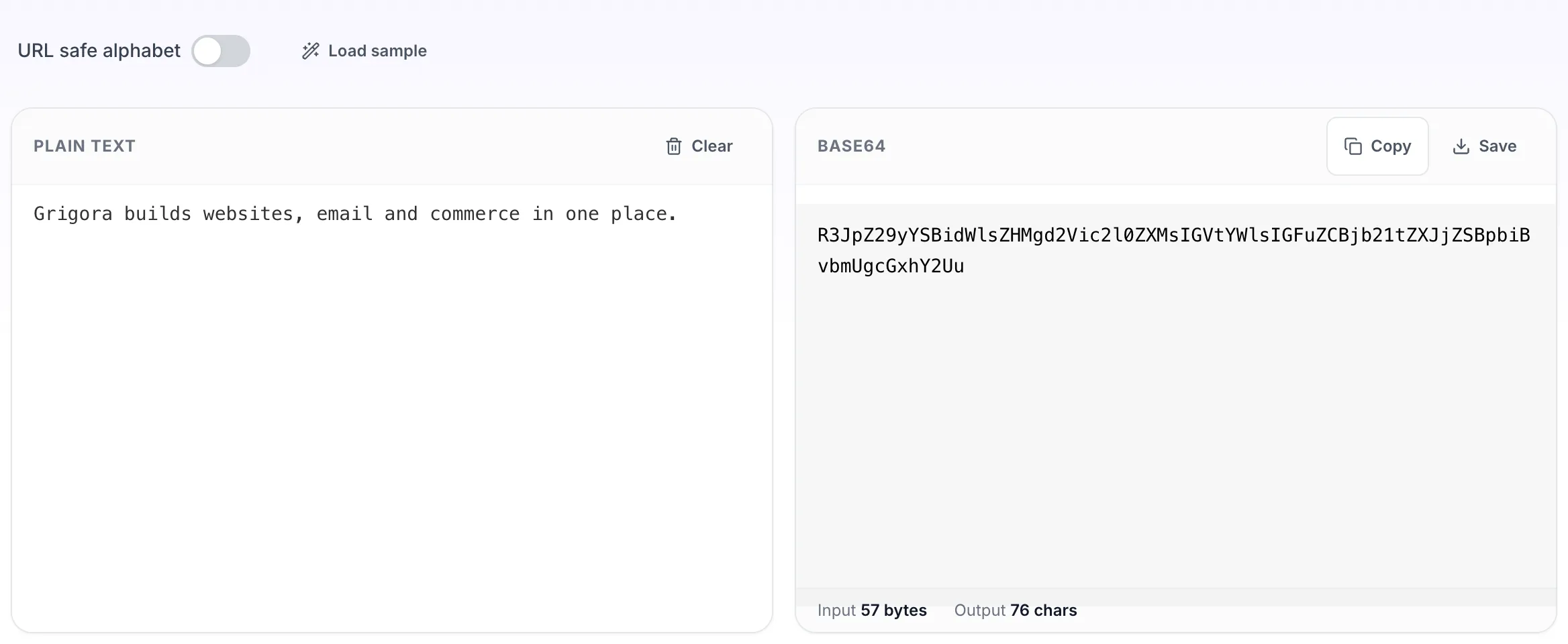
Paste your own plain text, or load the sample. The base64 pane fills in as you type.
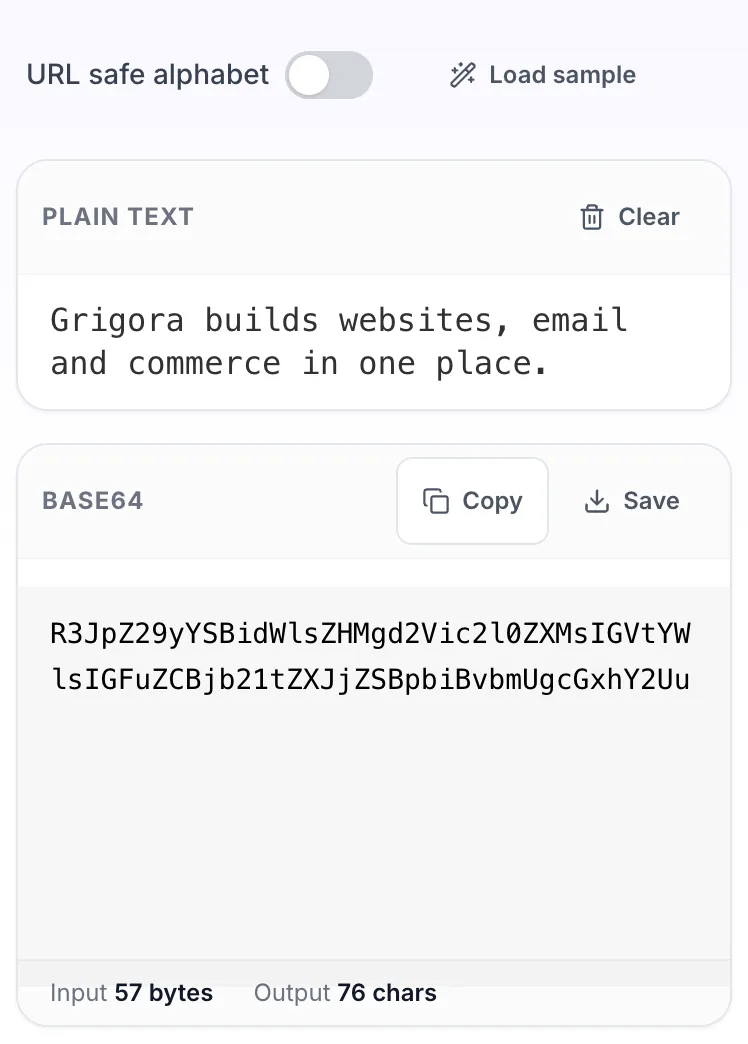
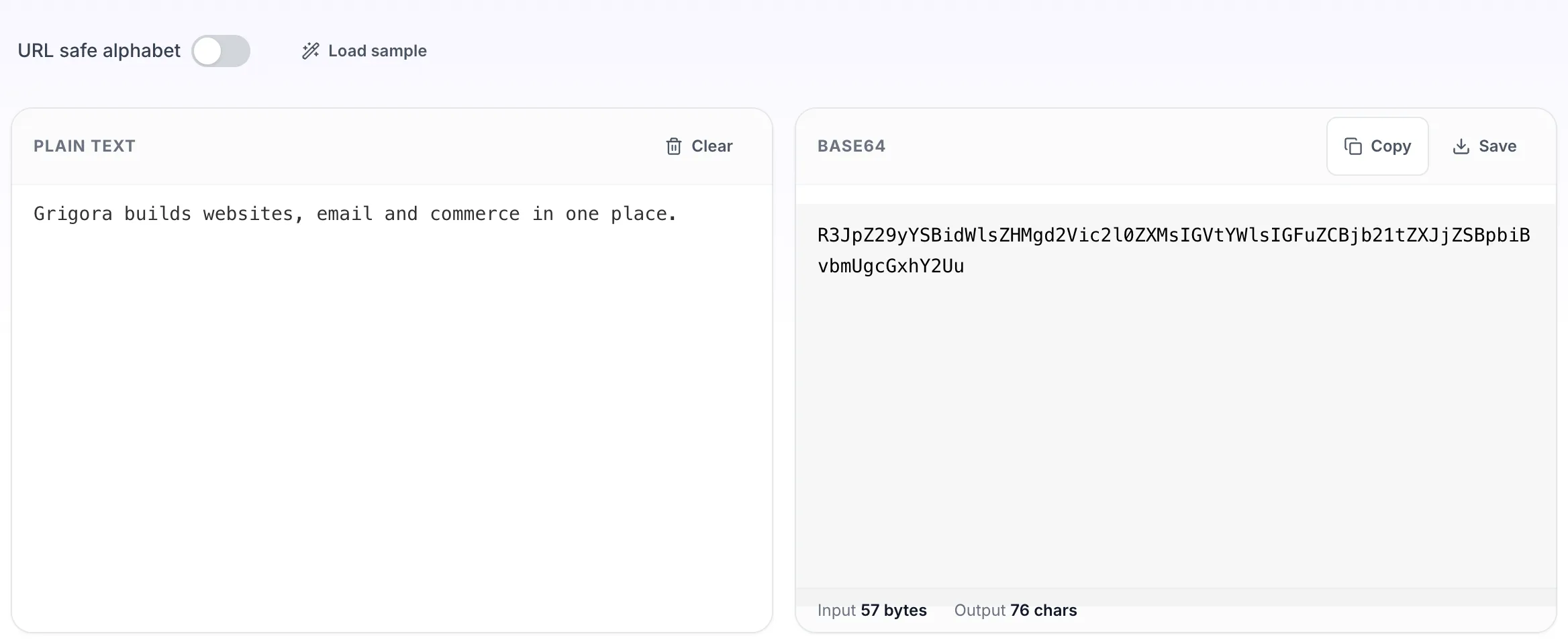
- 3
Read the result
The base64 appears on the right with copy and save beside it.