Free Text to HTML Converter
Convert plain text to clean HTML paragraphs, line breaks, or custom tags. Free, instant, copy-paste.
How to use the Text To HTML Converter, step by step
Real screenshots of the tool, taken while running it.
- 1
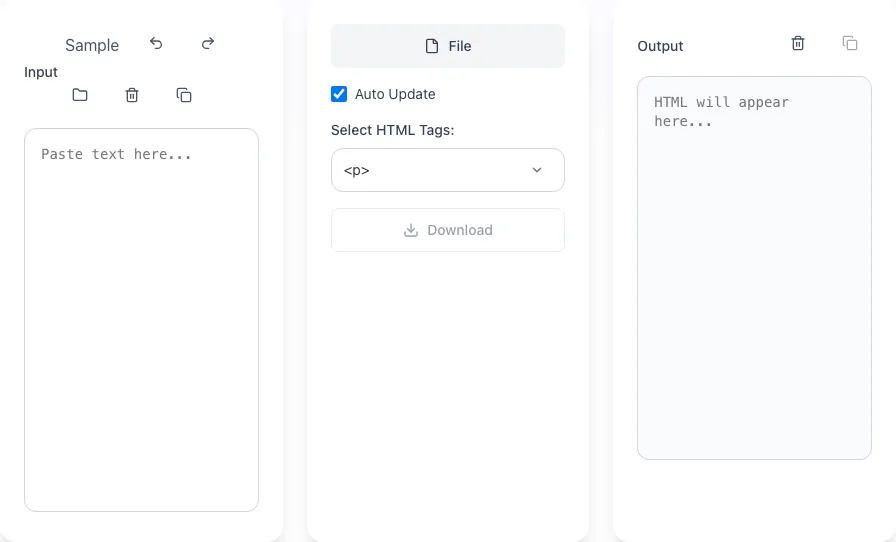
Start with an empty tool
Your text goes in the Input panel. The tag options sit next to it, and the HTML appears in the Output panel.

- 2
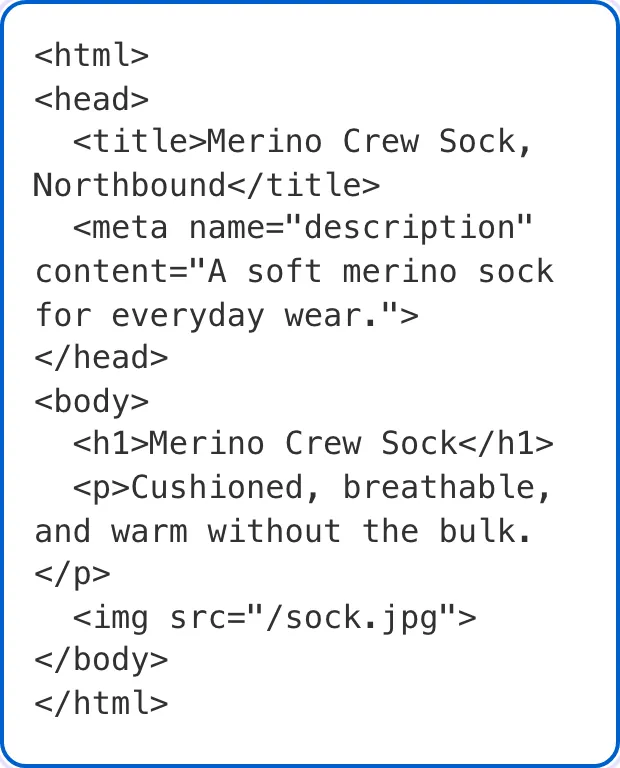
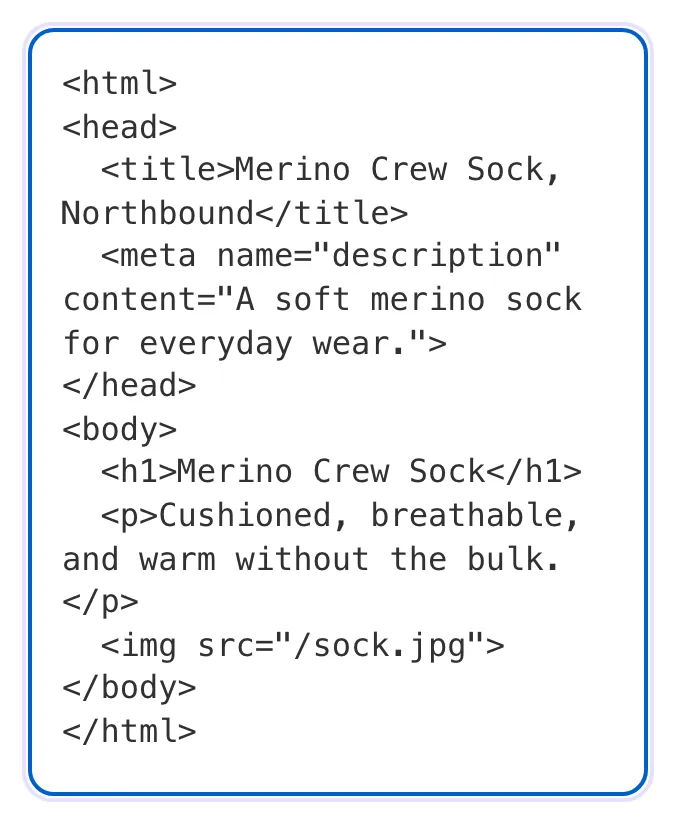
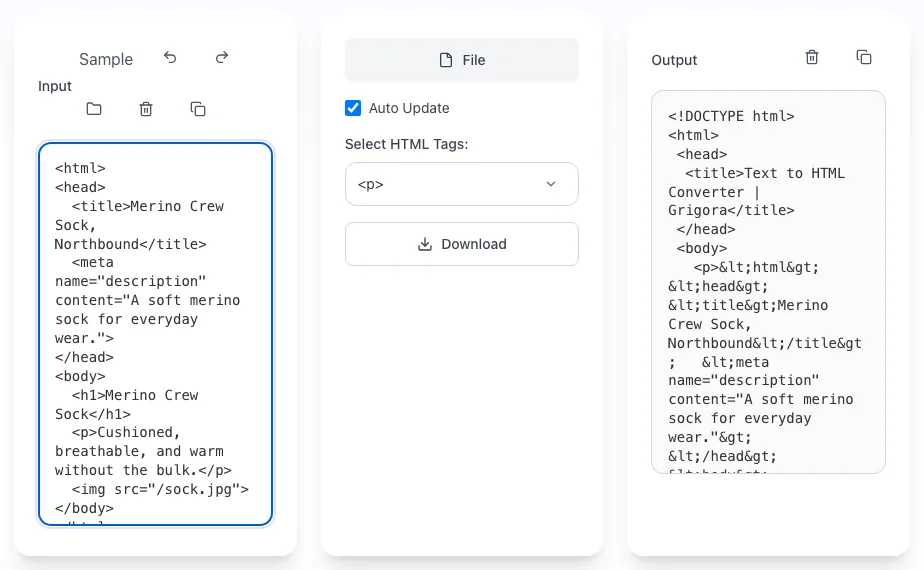
Paste your text
Paste plain text with a blank line between paragraphs. With Auto Update on, the HTML fills in as you type.
- 3
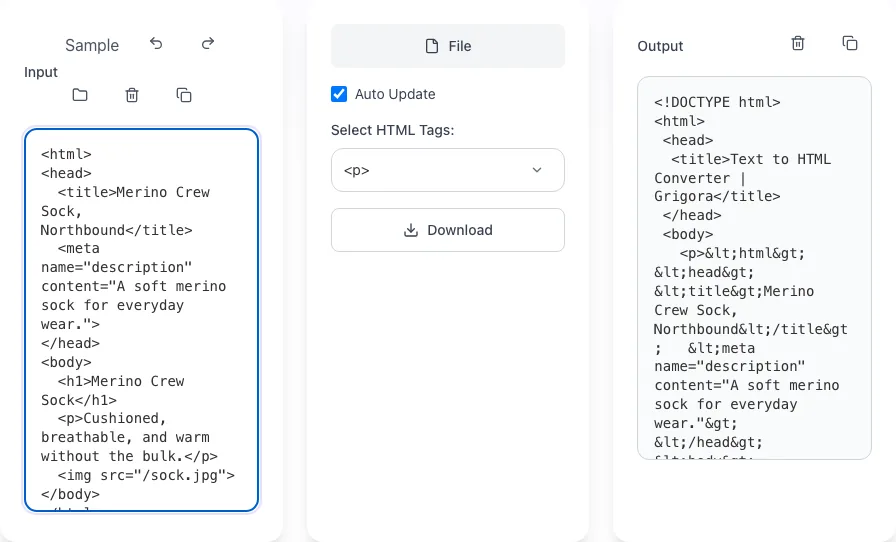
Copy the HTML
Each paragraph comes back in its own p tag, inside a complete HTML document. Copy only the lines between the body tags into your CMS.
What this tool does
Text to HTML Converter wraps plain text in HTML tags. Choose one of four modes: <p> for one paragraph per block of text, <p> with <br /> to keep the line breaks inside each paragraph, <br /> only for a break after every line, or a custom tag of your own around every line. A blank line marks where a new paragraph starts.
It escapes <, > and & so those characters show up as text instead of being read as HTML, and returns a complete HTML document with a doctype, a title and your text in the body, ready to copy or download as converted.html. It does not detect headings, lists, links or Markdown, and the conversion runs in your browser.
How to use it
Five steps.
Paste your plain text
Type or paste into the Input box, or load a .txt file with the File button. Leave a blank line between paragraphs; that is how the converter finds them.
Choose tag output
Pick paragraph tags, paragraph plus line breaks, line breaks only, or a custom tag for each line.
Review the output
With Auto Update ticked, the HTML appears in the Output box as you type. Untick it to convert only when you press Convert.
Copy or download the HTML
Copy the output or download it as converted.html. It is a complete HTML document; to paste into a CMS, copy only the lines between <body> and </body>.
Add headings, lists and links yourself
The converter does not create headings, lists or links. Add <h2>, <ul> and <a> tags by hand or in your CMS editor after pasting.
When teams use it
Six common workflows.
Turning a plain-text draft into CMS-ready paragraphs
Draft in any plain text editor with a blank line between paragraphs, convert in <p> mode, and paste the body lines into a WordPress Custom HTML block or any other HTML field.
Adding copy to an email HTML block
Convert a plain-text email draft with <p> or <p> with <br />, then paste the body lines into the HTML or code block of your email builder, which supplies the email layout around them.
Wrapping every line in the same tag
Type li in the Custom Tag box and every line becomes a list item to drop inside your own <ul> or <ol>. The same works for h3, option, td or a div with a class.
Publishing text copied from Word or a PDF
The Input box takes plain text, so Word styles and fonts never reach the output. In <p> mode the lines inside a paragraph are joined with a space, which removes the hard line breaks text copied from a PDF can carry, as long as a blank line separates the paragraphs.
Putting text that contains <, > or & on a page
Formulas such as a < b and brand names with an ampersand are escaped to <, > and &, so those characters show up as text instead of being read as HTML. Indentation is not kept, so it does not suit code samples.
Keeping line breaks in addresses and poems
Choose <p> with <br /> and each paragraph keeps its own line breaks, which suits postal addresses, poems and signature blocks while still giving each block its own <p>.
Platform guides
Integrate with major platforms.
WordPress
- Convert your text, then copy only the lines between <body> and </body>
- In the block editor, add a Custom HTML block where the text should go, or type /html in a new paragraph block
- Paste the lines into the block; in WordPress 7.0 and later, click Edit HTML first and press Update when you are done
- Or switch the post to the Code editor from the Options menu and paste them there
Webflow
- Convert your text, then copy only the lines between <body> and </body>; Webflow warns that <html>, <head> or <body> tags in an embed break the layout
- In the Designer, add a Code Embed element where the text should go (it needs an active Site plan or a Core, Growth, Agency or Freelancer Workspace)
- Paste the lines, save the code and publish the site
Shopify Pages
- Convert your text, then copy only the lines between <body> and </body>
- In Shopify admin, go to Online Store > Pages and open the page
- Click the code button (<>) in the content editor toolbar to show the HTML
- Paste the lines and save the page
Ghost
- Convert your text, then copy only the lines between <body> and </body>
- In the Ghost editor, add an HTML card
- Paste the lines into the card and preview the post
Email platforms (Mailchimp, Klaviyo and similar)
- Convert your draft, then copy only the lines between <body> and </body>
- Paste them into the HTML or code block of your email builder, which keeps the email layout around them
- Send yourself a test email and check it in the inboxes your readers use
Common errors and fixes
Eight issues users hit.
My HTML tags show up as text
Cause: The converter escapes <, > and &, so any markup in your input is shown as characters instead of being read as HTML.
Fix: This tool is for plain text. If your input is already HTML, it does not need converting; tidy it with the HTML Beautifier instead.
Headings and lists come out as paragraphs
Cause: The converter does not detect headings, bullet points or numbered lists. Every line is treated as plain text.
Fix: Change heading lines to <h2> or <h3> after converting. For a list, convert just the list lines with li as the custom tag, then wrap the result in <ul> or <ol>.
Paragraphs all collapse into one
Cause: Input had single line breaks between paragraphs instead of double line breaks.
Fix: Insert blank lines between paragraphs in the source; the converter relies on double newlines as paragraph delimiters. Or type p as the custom tag, which gives every line a paragraph of its own.
The output starts with <!DOCTYPE html> and a title
Cause: The converter returns a complete HTML document: a doctype, a head with a fixed title, and a body holding your text.
Fix: To paste into a CMS or an existing page, copy only the lines between <body> and </body>. To use the downloaded file as a page, change the text inside <title>.
Blank lines disappear in <br /> mode
Cause: <br /> only adds a break after every line that has text and drops empty lines, so the gap between paragraphs is lost.
Fix: Choose <p> or <p> with <br /> when your text has paragraphs.
Bold, italics and links from Word are lost
Cause: The Input box holds plain text only, so pasting from Word or Google Docs keeps the words and line breaks but not the formatting.
Fix: Add <strong>, <em> and <a> tags back after converting, where you need them.
URLs are not clickable
Cause: The converter does not turn URLs into links. A URL comes out as plain text inside its tag.
Fix: Wrap each URL in an <a href="..."> tag yourself after converting.
Custom tag gives <p> tags instead
Cause: Custom tag is selected but the Custom Tag box is empty, so the converter falls back to <p> paragraphs.
Fix: Type a tag name such as li, h3 or div in the Custom Tag box. Attributes work too, for example div class="note".
Frequently asked questions
Twelve answers.
Related free tools
Other utilities.
Meta Tag Generator
Generate page meta tags.
Try itMeta Description Generator
AI-write descriptions.
Try itSERP Snippet Preview
Visualize SERP rendering.
Try itOpen Graph Checker
Audit OG tags.
Try itMeta Title Checker
Audit page title.
Try itLink Metadata Scraper
Pull all metadata from URL.
Try itHTML Encoder
Escape HTML entities without wrapping text in tags.
Try it