A blog post needs about a dozen HTML tags: <p>, <h2> and <h3>, <a>, <img>, <ul>, <ol> and <li>, <strong>, <em>, <blockquote>, <table> and <figure>. Most of what older guides to HTML tags for blog posts add on top (<font>, <center>, align, and <br> for spacing) is either obsolete in the HTML Standard or a job for your stylesheet.
Say that first, because <font color="red"> and <p align="center"> are still taught in popular guides on this subject. The HTML Standard lists center and font among 29 elements that are "entirely obsolete, and must not be used by authors", and align sits on the matching list of obsolete attributes: on paragraphs, divs, captions and every heading level.
You will hand-type almost none of this. Your CMS writes the markup when you press the heading button, so the useful question is not what the tags are called but which of them change anything, for Google or for the person reading.
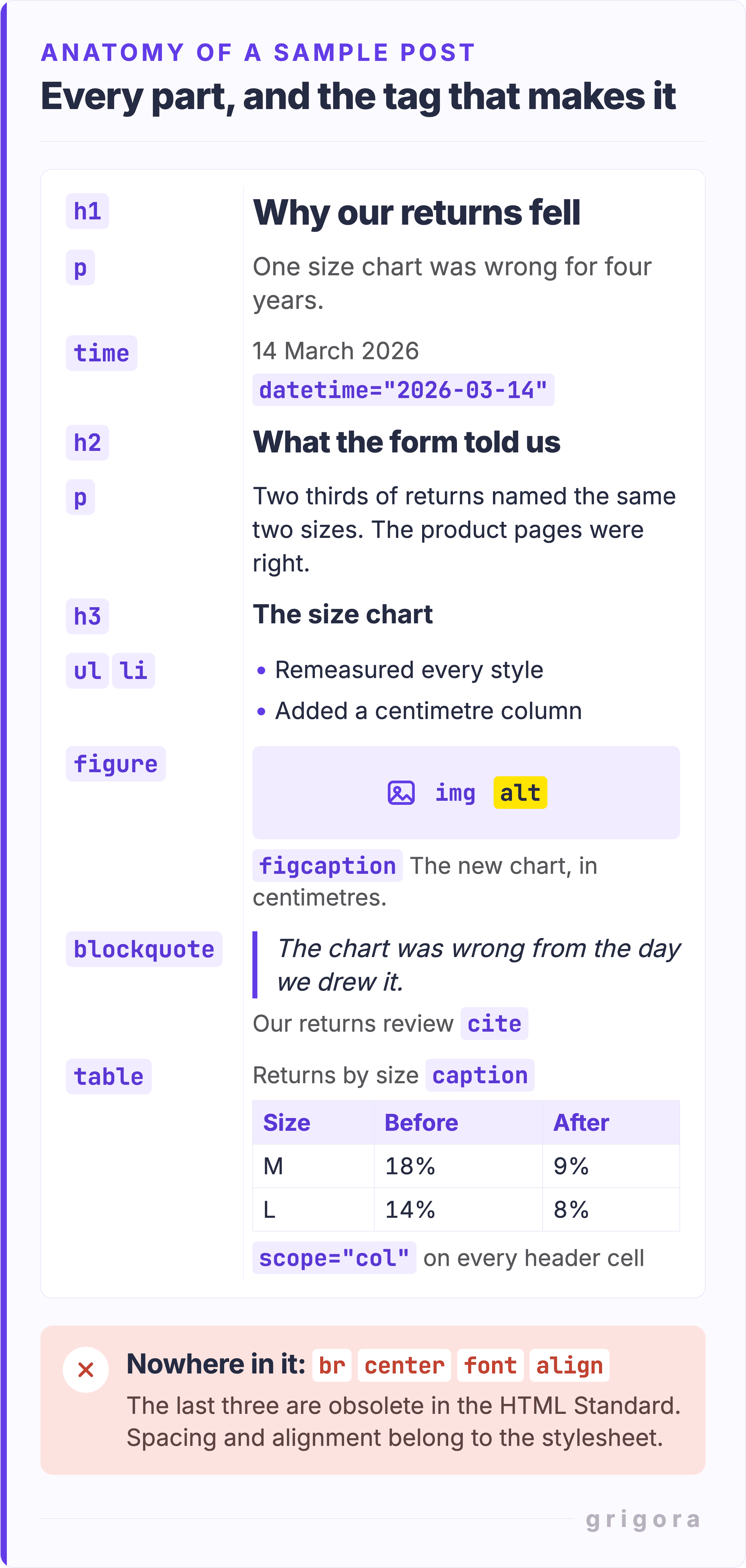
The whole list is in the table, with the few worth deleting alongside it, and the diagram after it shows the same tags building a short sample post. <h1> is there but you rarely type it: your theme wraps the post title in it.
Tag
Its job in a post
Keep or cut
<p>
One paragraph
Keep
<h1>
The post title, written by your template
Keep, via the theme
<h2>, <h3>
Section and sub-section headings
Keep
<a href>
A link, and the only form Google reliably crawls
Keep
<img> with alt
An image and its text alternative
Keep
<ul>, <ol>, <li>
Bullets for peers, numbers for sequence
Keep
<strong>, <em>
Importance, and spoken stress
Keep, sparingly
<blockquote>, <q>, <cite>
Block quote, inline quote, title of the quoted work
Keep
<table> with <caption>
Comparable data in rows
Keep
<figure>, <figcaption>
An image plus a visible caption
Keep
<code>, <time datetime>
Inline code; a machine-readable date
Keep
<br>
A line break that belongs to the content, as in an address
Cut wherever it makes spacing
<center>, <font>, align
Presentation the stylesheet owns
Cut, obsolete
The elements and their jobs, laid over the post they build.
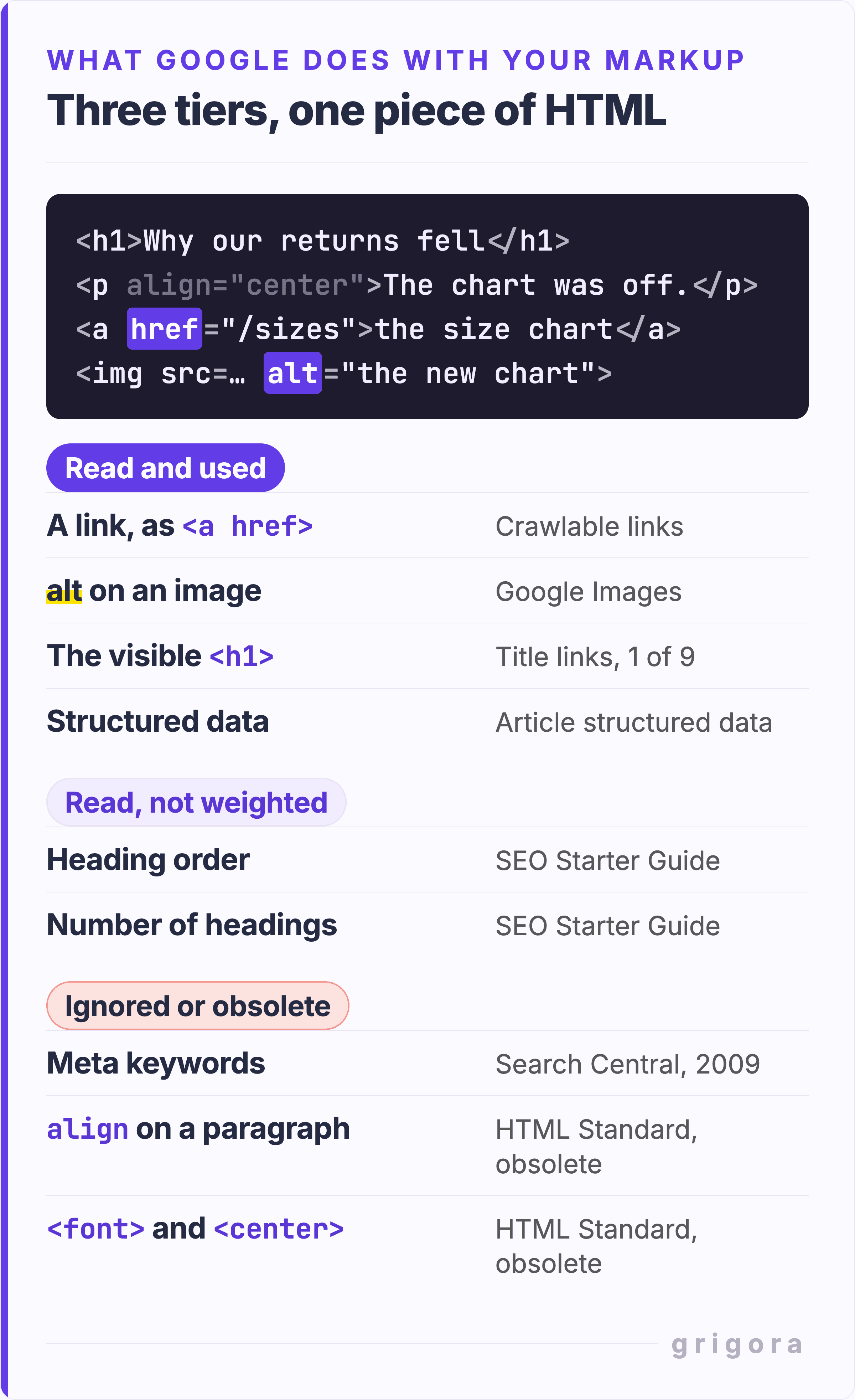
What Google reads from your markup, and what it ignores
Google documents a use for three pieces of markup inside a post. Everything else matters for readers, for screen readers and for whoever edits the post in two years:
The link, and only as an <a> with an href.Google is blunt: "Generally, Google can only crawl your link if it's an <a> HTML element ... with an href attribute."
The alt attribute.Google calls it "the most important attribute when it comes to providing more metadata for an image".
Your main visible heading. Heading elements are one of nine sources Google lists for the title link, alongside <title>, og:title and anchor text. Google's own suggestion is to put the title text "in the first visible <h1> element on the page".
Heading order is not on that list. Google's SEO Starter Guide names it among the things you should not focus on: "it doesn't matter if you're using them out of order". Its reasoning: "The web in general is not valid HTML, so Google Search can rarely depend on semantic meanings hidden in the HTML specification."
What Google reads, separated from the folklore.
None of this makes clean markup pointless. Its payoff lands mostly outside Google: in screen reader navigation, and in a CMS that can restyle a five-year archive without touching the posts. Structured data, the fourth row of the top tier, comes up with the head tags further down, and the reasons blogs are good for SEO sit well above tag level.
Heading tags: h1, h2, h3 without the myths
One <h1> per post is a clarity rule, not a Google rule. Google's wording is about prominence rather than counting: make it "clear which text is the main title for the page", because "it can be confusing if multiple headings carry the same visual weight and prominence". MDN lands in the same place and adds a rule that has changed: several <h1> elements are still allowed "as long as they are not nested", but nesting them inside <section> or <article>, which older versions of the standard permitted, is now non-conforming.
There is no number, and Google says so: there is "no magical, ideal amount of headings" a page should have, though "if you think it's too much, then it probably is."
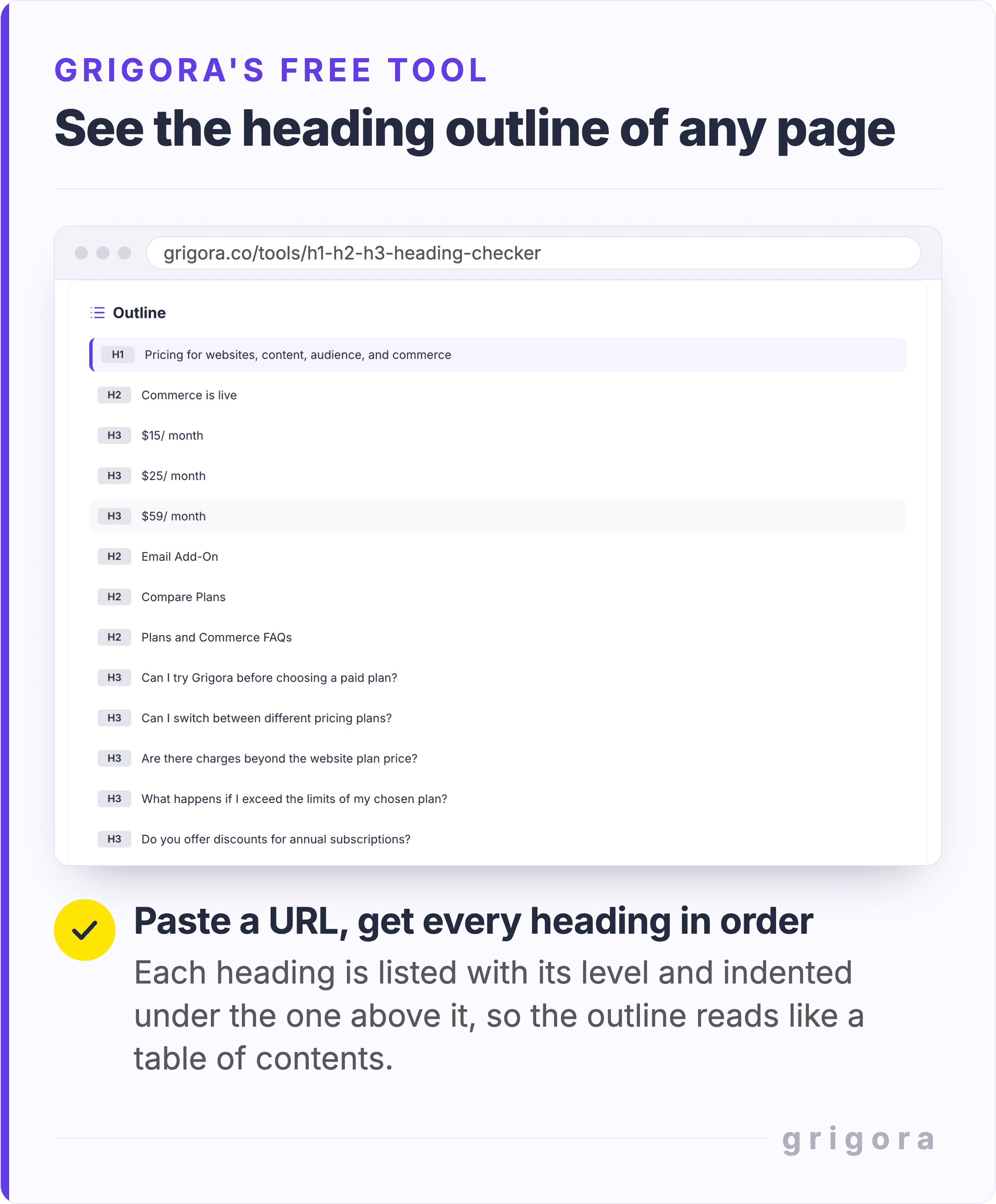
Check your own rather than guessing. The free H1 H2 H3 Heading Checker takes one public URL and draws its headings as an indented outline. A summary above the outline counts each level and warns about a missing or duplicate h1, and a skipped level gets its own warning line inside the outline. The screenshot below is the outline panel alone, run on a Grigora page.
The Heading Checker lists a page's headings in the order they appear, indented by level, with one H1 at the top.
Bold, italic, and the strong versus b question
<b> and <i> are not old versions of <strong> and <em>, and neither is on the HTML Standard's non-conforming list. MDN puts the difference in one sentence: "The <strong> element is for content that is of greater importance, while the <b> element is used to draw attention to text without indicating that it's more important."
So <strong> goes on the sentence a skimmer must not miss, which here is the first paragraph, and <em> on the word you would lean on reading aloud. Bolding for looks is a CSS font-weight. Leave <u> out of body copy: MDN warns against using its default underline where it can "be confused with a hyperlink, which is also underlined by default".
Anchor text, new tabs and the three rel values
Anchor text deserves more attention than the tag around it, because here the markup and the reading experience are the same thing. Google's test takes a second: read the anchor text on its own and see whether it still makes sense by itself. Its examples of anchor text that is too generic begin with "Click here" and "Read more".
Three rel values tell Google something: sponsored for ads and paid placements, ugc for comments, nofollow for anything else you would rather not endorse. Since 10 September 2019 all three are "treated as hints about which links to consider or exclude within Search", and nofollow has been a crawling hint since 1 March 2020. A link you cite because the page is good needs none of them, which is why nofollowing every outbound link is the wrong habit.
noopener has quietly stopped mattering. It was a real requirement on target="_blank" links, because the page you opened could reach back through window.opener. Setting target="_blank" now implicitly provides the same rel behavior, so typing noopener is habit rather than protection. noreferrer still does a job: it strips the referrer.
In Grigora's blog editor these are options in the link dialog. Select the text, click the link button, and choose from Open in New Tab, No Follow, No Refer and Sponsored.
Marking up images: img, alt, figure and figcaption
Three things belong on an image tag. Only the first describes the image to Google; the other two decide how the page loads.
alt, written as a sentence.Google asks for "useful, information-rich content" and warns that stuffing keywords in "may cause your site to be seen as spam". How alt text, file name and caption split the work is in how to name image files for SEO.
loading="lazy", below the first screen only.web.dev says not to lazy-load "images that are likely to be in-viewport when the page loads, especially LCP images". The picture at the top of your post is usually that image.
Lists, tables, quotes and the divider you should not use
Lists turn on one question: does the order carry meaning? Steps in a method, a ranking, a sequence someone follows, <ol>. Everything else, <ul>. A list of one item is a paragraph wearing a bullet.
A <caption> is the one addition worth the keystrokes, because it "helps the people decide if they need to check the rest of the table content or skip over it". scope on each <th> is "redundant in simple contexts, because scope is inferred", but the same page adds that some assistive technologies fail to infer it, which is why the sample post above keeps it: one attribute is cheap insurance. An explicit <tbody> changes nothing a reader will notice, because the browser wraps the rows in one anyway.
For quotations, the specification puts the attribution outside the quote: the passage in <blockquote> with the source URL in its cite attribute, the source named underneath, the work's title in a <cite> element. A quote inside a sentence is <q>.
This is not archaeology. The 2024 Web Almanac found <font> and <center> each on 4.5% of mobile pages, and of the 29 obsolete elements in the spec, every one but keygen turned up in its dataset. The same chapter notes that Google's own home page still relied on <center>.
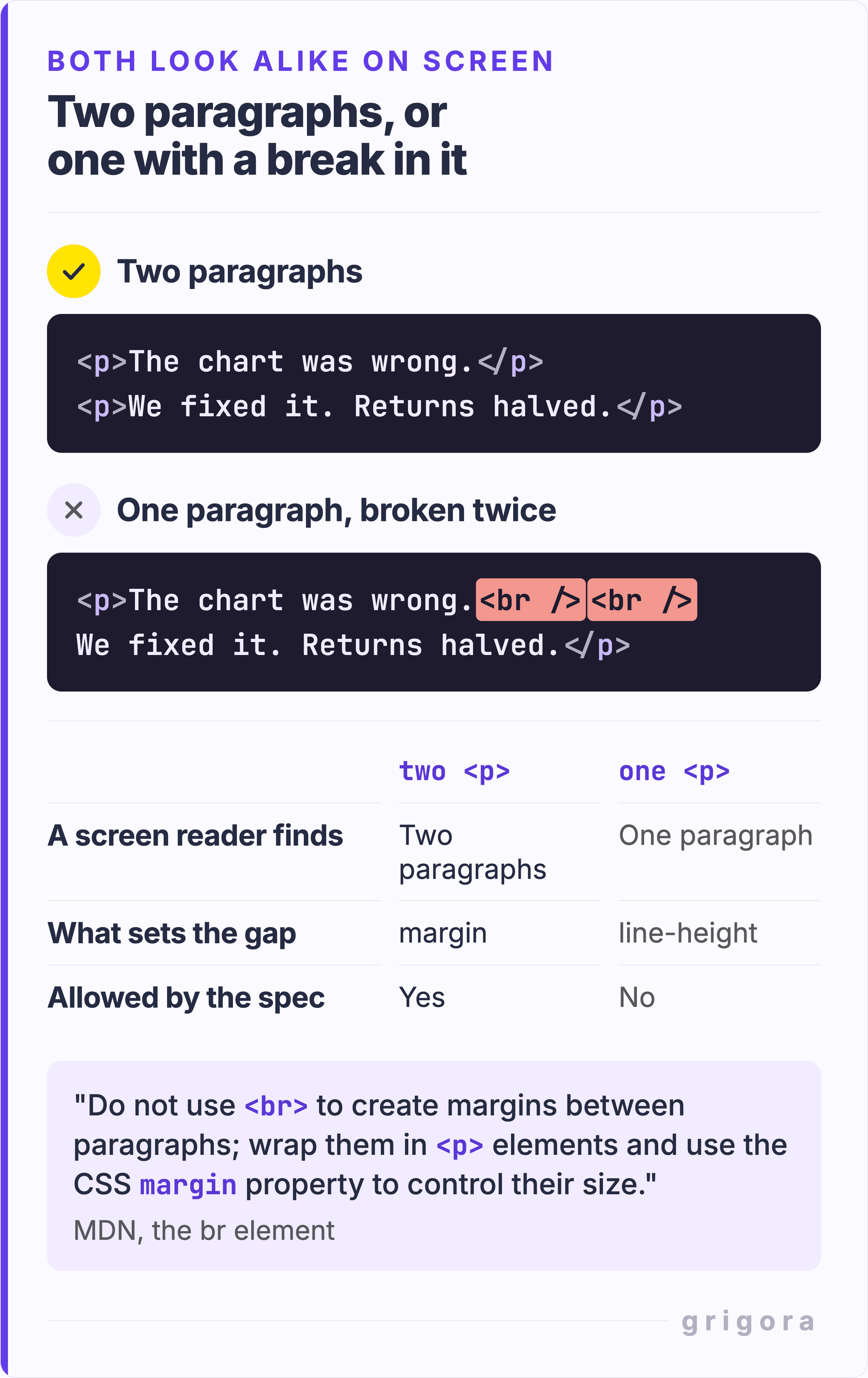
<br> as paragraph spacing.MDN: "Do not use <br> to create margins between paragraphs; wrap them in <p> elements and use the CSS margin property to control their size." Two paragraphs joined this way reach a screen reader as one, a pattern MDN calls "problematic for people who navigate with the aid of screen reading technology". The HTML Standard keeps <br> "for line breaks that are actually part of the content, as in poems or addresses".
<center> and <font>. Non-conforming. Their jobs belong to your stylesheet's alignment and type rules.
align and bgcolor. Alignment and background colors belong in the stylesheet, as text-align and background-color. <strike> went the same way; the spec sends you to <del> "if the element is marking an edit, otherwise use s".
Empty headings. A heading with nothing in it is a rung missing from the ladder for anyone moving through the page by heading, and they are not rare: the 2025 Web Almanac found <h1> on 70% of mobile pages but a non-empty one on 66%. If what you wanted was space, that is margin.
Inline style attributes from a paste. Valid, and a slow problem: change your theme and every pasted color stays behind.
Two sentences, two ways. Only the first gives each its own paragraph.
Do not hunt for this by eye in the editor. The free HTML Beautifier puts every paragraph, heading and list item on its own line at its own depth, so a paragraph built from breaks shows up as one long <p> line with <br /><br /> in the middle of it.
What goes in the head, and what schema is worth adding
Three head tags matter. The <title> element is first on that list of nine title-link sources. The meta description is not a second title: Google builds the snippet from the page and uses your description when it "describes the page better than other parts of the content". The robots meta tag is the one to reach for when a page, such as a thin tag archive, should stay out of the index; which pages to exclude from your sitemap works through that decision page type by page type. The keywords meta tag matters nowhere at all: a Google post dated 21 September 2009 says Google began disregarding it "many years ago", and the post now carries a banner confirming "Google still doesn't support the keywords meta tag".
From a Google Docs or Word draft to clean blog HTML
Often the real job is not picking tags at all. It is getting a draft out of Google Docs or Word into a CMS without a page of <span> wrappers and inline styles riding along.
Strip it back, then rebuild. Paste the messy HTML into the free HTML to Text Cleaner, which drops every tag, script, style block and comment and decodes entities. Two things come back changed: headings arrive in capital letters, and paragraphs sit on consecutive lines with no blank line between them. Run the text through the free Text to HTML Converter, then put back the links and the headings, retyped in normal case.
Paste straight in, then audit. Faster, and fine if your editor cleans up on paste. Check that headings are heading tags and not bold paragraphs, paragraphs are <p> and not <br> pairs, and no style="..." came along.
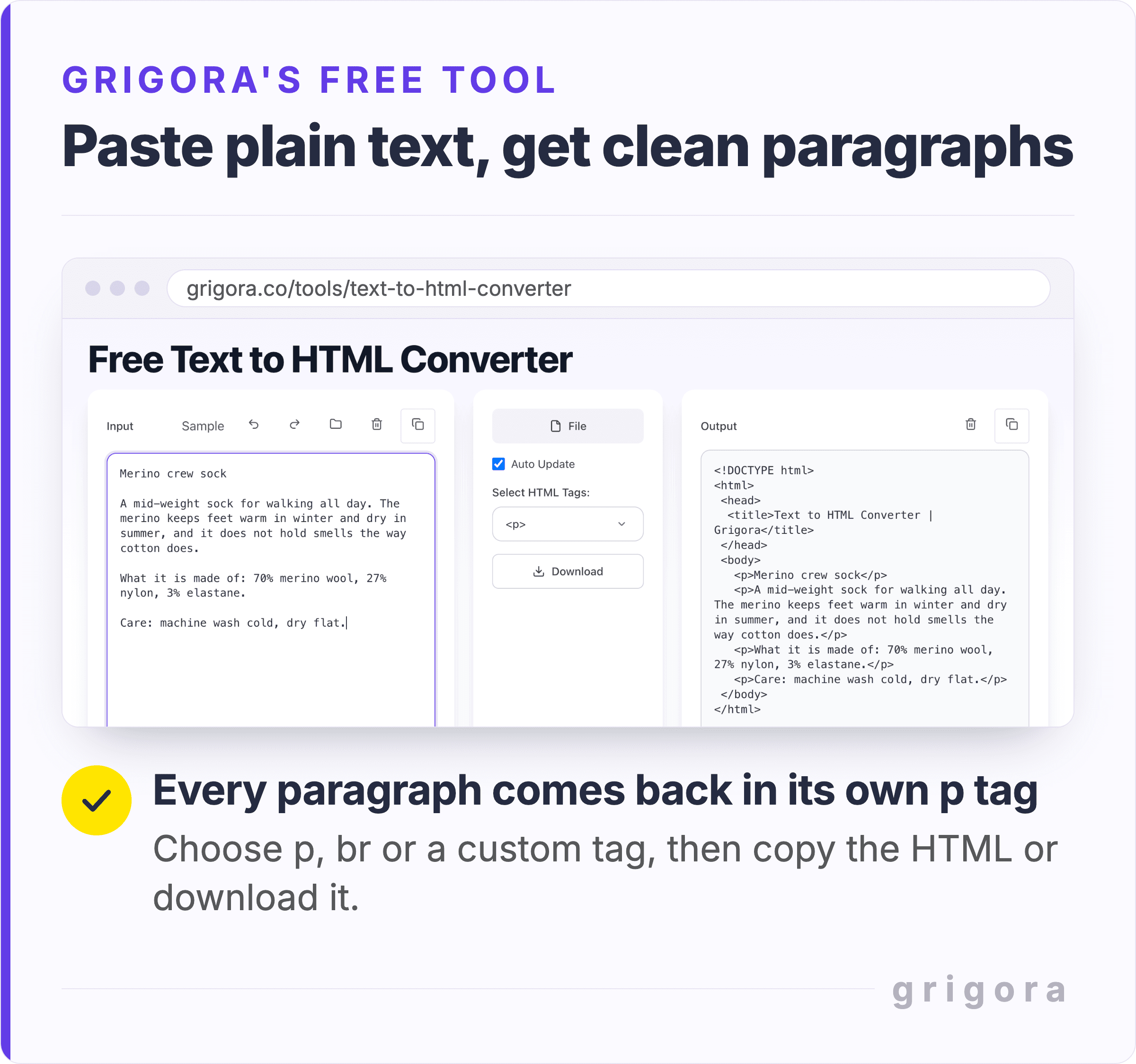
The converter's tag selector is where this goes right or wrong. It has four modes: <p>, <p> with <br />, <br /> only, and a custom tag wrapped around each line. In <p> mode a new paragraph starts only at a blank line, and the lines in between are joined with a space. That suits a draft with blank lines between paragraphs, but text straight from the cleaner would come back as a few long paragraphs; for that, type p as the custom tag, which gives every line a paragraph of its own. Avoid <br /> only: it writes no paragraphs at all, just a break at the end of every line, which is the markup the section above tells you to delete.
The Text to HTML Converter turns a pasted description into one p tag per paragraph, no stray br tags.
Whichever mode you pick, the output is a whole HTML document, with a doctype, a head and a title, as the screenshot shows, so copy only the lines inside <body>. The sample's first line, the product name, came back as a paragraph like the rest: the converter does not detect headings, which is why they go back on by hand.
None of this needs a rewrite of your archive. Publish the next post as usual, run its live URL through the heading checker and the alt text extractor above, and fix what they flag. For the setup that comes before anyone reads the blog at all, see the 21 things to do before others can view your blog.
Setting these tags in Grigora without writing HTML
Most of the tags above are controls in Grigora's blog editor rather than markup you type. The Tag setting converts a text block to H1 through H6, an image block has its own Alt Text field, and the first option on the toolbar turns a text block into a list, a quote block or a code block, so a pull quote takes a couple of clicks rather than hand-written markup.
Lists. List Type is bullets, numbered or custom: the <ul> and <ol> choice under a friendlier name.
Tables. Pick rows and columns, then turn headers on. Table Mode decides what happens on a narrow screen: Squish, Scroll or Collapse, which stacks each row.
Grigora's trial runs 14 days with no card needed, and the plans are here.
HTML tags for blog posts FAQs
How many HTML tags does a blog post actually need?
About a dozen do nearly all the work: paragraphs, h2 and h3 headings, links, images with alt text, the three list tags, strong and em, blockquote, table and figure. The h1 is usually written by your theme around the post title, so you rarely type it. Almost everything older guides add beyond that is either obsolete or belongs in the stylesheet.
Should a blog post have only one H1 tag?
Use one, but not because Google requires it. Google asks you to make clear which text is the main title, since it is confusing when several headings carry the same visual weight. MDN notes that more than one <h1> is allowed as long as they are not nested, but that one is best practice.
Is the strong tag better than the b tag for SEO?
Probably not. The only difference between them is meaning, and Google's SEO Starter Guide says Google Search "can rarely depend on semantic meanings hidden in the HTML specification". <strong> marks content of greater importance; <b> draws attention without implying it. Pick on meaning; if you are bolding for looks, use CSS font-weight.
Do heading tags have to be in order for SEO?
Not for Google. Its SEO Starter Guide says it does not matter if headings are out of order, because the web in general is not valid HTML. Keep them in order for people: in WebAIM's 2023 to 2024 survey, 71.6% of screen reader users said moving through the headings is the first thing they do to find information on a long page.
Should I use a br tag to put space between paragraphs?
No. MDN says not to use <br> to create margins between paragraphs: wrap them in <p> elements and control spacing with CSS margin. Two paragraphs joined by breaks reach a screen reader as one paragraph. Keep it where the break is the content, such as an address.
Do I need article and section tags in a blog post?
Your theme decides this, not you. <article> is a self-contained composition meant to be independently distributable, which a blog entry is. <section> is a generic section that should always have a heading. Both belong in a template, not in the body you type.
Does FAQ schema still get you rich results in Google?
No. Google announced on 8 August 2023 that FAQ rich results would show only for well-known government and health sites, and its changelog records the feature ending on 7 May 2026. Existing FAQPage markup causes no harm, but produces nothing visible.
Get the next guide by email
Practical writing on building a site, growing an audience and sending email people open. No more than one a week.